YARA Hunt (New UI)
The YARA Hunt page allows you to manage YARA rulesets and perform threat hunting across your sample collection using custom or pre-built YARA rules.
For detailed YARA documentation, see YARA Hunting.
Overview
The YARA Hunt page allows you to create and manage YARA rulesets, view match statistics, and configure YARA rule repositories for threat hunting across your sample collection.
Creating and managing rulesets
New YARA Ruleset
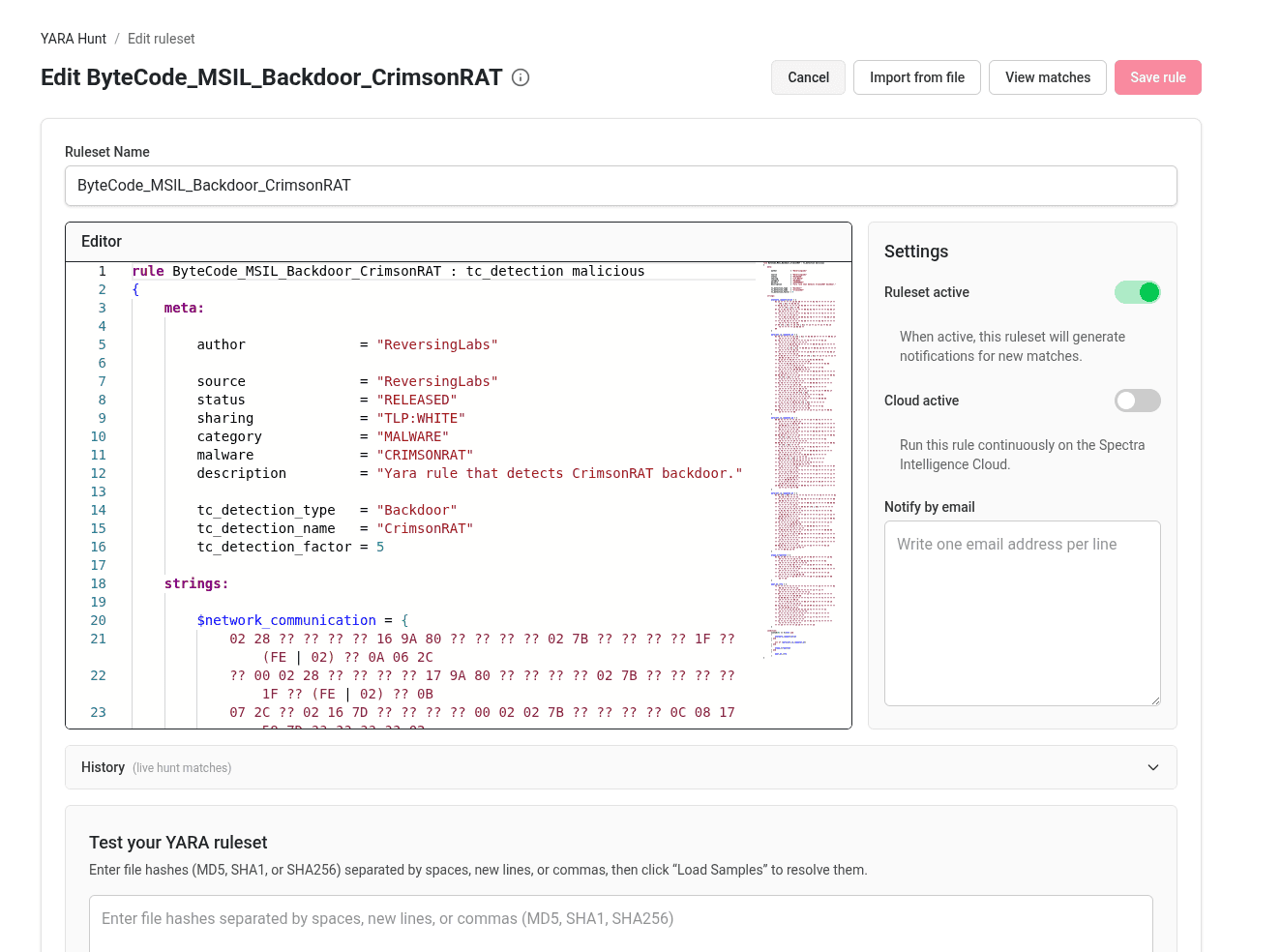
Select New YARA Ruleset to create a custom ruleset. The editor provides a text area for writing YARA rules with standard syntax support. Configure the ruleset settings including activation status, cloud execution, and email notifications. You can import rules from a file or write them directly in the editor.
Manage YARA Repositories
Select Manage YARA Repositories to configure YARA rule sources and repositories. The Repositories page displays all configured repositories with options to import, edit, or delete them. Add new repositories by providing the Git repository URL and name, with optional settings for source branch, API token, and update/import preferences (Manual, Auto-Update, or Auto-Update & Auto-Import).
The Manage YARA Repositories interface is identical to the classic UI. See YARA Repositories for detailed documentation.
Filtering rulesets
Use the search field to filter rulesets by name, or use the dropdown filters to narrow by ruleset, status, or source. Select Clear to reset all filters.
Rulesets table
The main table displays all YARA rulesets with columns for ruleset name and rule count, owner, status, and match counts by classification (malicious, suspicious, goodware, unknown). Each row shows color-coded match badges and an actions menu. Rulesets can be user-created or pre-built from Spectra Core.
Select a ruleset name to open it in the editor for viewing or editing. Select the match count badges to view files that matched the ruleset.
Matches view
The Matches page displays all files that matched a specific YARA ruleset. The page header provides options to export match results, start a retro hunt, or edit the ruleset. Summary cards show total matched samples, most matched rule, format, and threat type.
Filter matches by revision, classification, threat type, file format, or source. The matches table displays file hashes, matched rules, threat classification, timestamps, and file size. Use checkboxes to select multiple samples for batch operations.
Ruleset actions
The actions menu on each ruleset row provides options to edit, view matches, activate/deactivate, delete, or export the ruleset.
Accessing the YARA Hunt page
To access the YARA Hunt page, select YARA Hunt from the left sidebar navigation.
Related pages
- YARA Hunting (Classic UI) - Complete YARA documentation
- Administration - YARA Repositories management
- IoC Submissions - View files matched by YARA rules