Sample Details (New UI)
For documentation of the classic Sample Details page, see Sample Details.
Overview
The Sample Details page displays comprehensive analysis results for a submitted file or network resource. In the new UI, it opens as a drawer panel that slides in from the right side of the screen, allowing you to view file details while maintaining context of the submissions list. The drawer can also be opened in a new browser tab for full-screen viewing.
To open Sample Details, select any file hash in the IoC Submissions table. Close the drawer using the Back button, ESC key, or X icon.
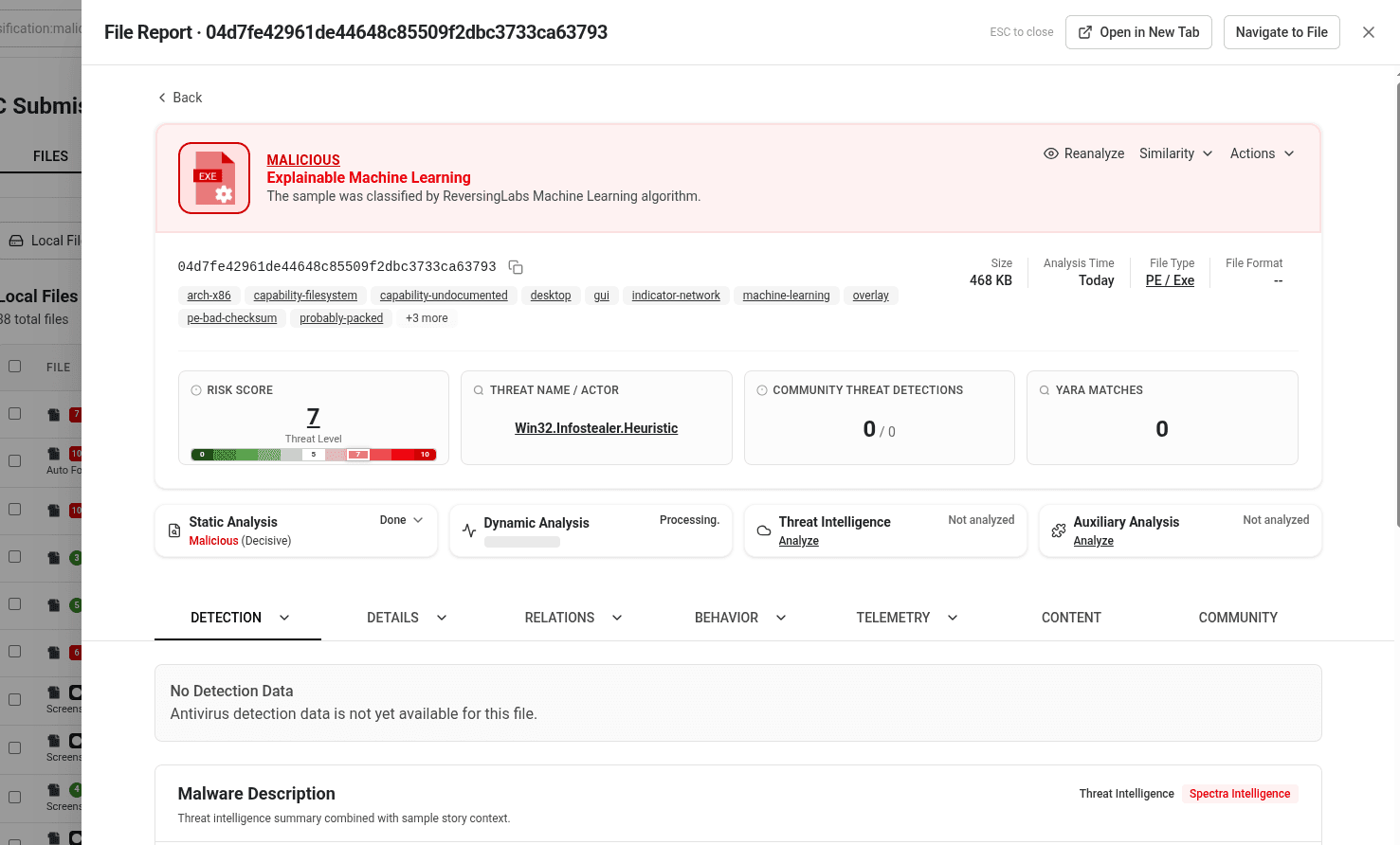
Page structure
In general, the page structure is similar for both files and network resources, but some provided information and tabs may differ. Network resource show only the following tabs: Detection, Details, Relations, Behavior.
The page header displays classification status (MALICIOUS, SUSPICIOUS, GOODWARE, or UNKNOWN) and reason, file hash, size, type, and relevant tags. Analysis information is organized into expandable/collapsible tabs, with the DETECTION tab expanded by default.
Analysis tabs
Detection
The DETECTION tab contains threat detection and classification information:
- Community Threat Detections - Detection results from multiple antivirus engines with detection counts
- Scanner Classifications - Classification results from various scanning engines
- YARA matches - List of matched YARA rulesets and rules. The following examples are illustrative and are not exhaustive
- Sandbox Detections - Detection results from sandbox analysis environments
Details
The Details tab contains technical information and analysis results.
PE files:
-
Basic properties (file hashes, type, and size)
-
Static Analysis results with detailed PE structure information
- Malware Description - Detailed description of the malware behavior and characteristics
- Indicators - Indicators of compromise and related threat intelligence
- File Information - Filename provenance, entropy, and file timestamps
- Tags - Spectra Core auto-extracted sample tags
-
Auxiliary Analysis results with detailed PE structure information
- Auxiliary Heuristics - RL auxiliary heuristics findings
- Auxiliary Tags - Attribution, target, and capability signals from ReversingLabs Auxiliary Analysis
- Auxiliary Plugin Results - Output from ReversingLabs extensibility plugins
Documents:
-
Basic properties (file hashes, type, and size)
-
Static Analysis results with detailed document structure information
- Malware Description - Detailed description of the malware behavior and characteristics
- Indicators - Indicators of compromise and related threat intelligence
- File Information - Filename provenance, entropy, and file timestamps
- Capabilities - Static-derived capability fingerprint
- Tags - Spectra Core auto-extracted sample tags
- Document properties - Document type and HTML document metadata
-
Auxiliary Analysis results with detailed document structure information
- Auxiliary Heuristics - RL auxiliary heuristics findings
- Auxiliary Tags - Attribution, target, and capability signals from ReversingLabs Auxiliary Analysis
- Auxiliary Plugin Results - Output from ReversingLabs extensibility plugins
Text files:
-
Basic properties (file hashes, type, and size)
-
Static Analysis results with detailed text file structure information
- Malware Description - Detailed description of the malware behavior and characteristics
- File Information - Filename provenance, entropy, and file timestamps
- Interesting Strings - Categorized string highlights from Spectra Core
- Tags - Spectra Core auto-extracted sample tags
-
Auxiliary Analysis results with detailed text file structure information
- Auxiliary Heuristics - RL auxiliary heuristics findings
- Auxiliary Tags - Attribution, target, and capability signals from ReversingLabs Auxiliary Analysis
- Auxiliary Plugin Results - Output from ReversingLabs extensibility plugins
Binary files:
-
Basic properties (file hashes, type, and size)
-
Static Analysis results with detailed binary file structure information
- Malware Description - Detailed description of the malware behavior and characteristics
- Indicators - Indicators of compromise and related threat intelligence
- File Information - Filename provenance, entropy, and file timestamps
- Interesting Strings - Categorized string highlights from Spectra Core
- Tags - Spectra Core auto-extracted sample tags
-
Auxiliary Analysis results with detailed binary file structure information
- Auxiliary Heuristics - RL auxiliary heuristics findings
- Auxiliary Tags - Attribution, target, and capability signals from ReversingLabs Auxiliary Analysis
- Auxiliary Plugin Results - Output from ReversingLabs extensibility plugins
Images:
-
Basic properties (file hashes, type, and size)
-
Static Analysis results with detailed image file structure information
- Malware Description - Detailed description of the malware behavior and characteristics
- File Information - Filename provenance, entropy, and file timestamps
- Interesting Strings - Categorized string highlights from Spectra Core
- Tags - Spectra Core auto-extracted sample tags
-
Auxiliary Analysis results with detailed image file structure information
- Auxiliary Heuristics - RL auxiliary heuristics findings
- Auxiliary Tags - Attribution, target, and capability signals from ReversingLabs Auxiliary Analysis
- Auxiliary Plugin Results - Output from ReversingLabs extensibility plugins
Network resources:
- Categories
- History (first seen, last seen, total analyses)
- Analysis History
- URL Info (requested URL, SHA1, HTTP status code, domain, serving IP, availability). URLs found in plain text are displayed in the Relations tab.
- Dynamic Analysis results, IP Information
- Downloaded Files statistics
- Domain Information
- Certificates (for HTTPS resources)
Relations
The Relations tab shows files and network indicators related to the analyzed sample.
For files, this includes URLs accessed or referenced by the sample, dropped files from dynamic analysis, and extracted files from static analysis.
For network resources, this includes HTTP Requests (method, categories, reputation), TCP Connections (destination port, categories, reputation), UDP Connections (destination port, categories, reputation), DNS Records (type, IP, categories, reputation), URLs (source, categories, reputation), and Dropped Files from dynamic analysis.
Behavior
The Behavior tab displays dynamic analysis results and behavioral observations:
- MITRE ATT&CK Techniques - Identified tactics and techniques mapped to the MITRE ATT&CK framework
- Dynamic Behavior - Detailed behavioral analysis from sandbox execution including:
- Process Actions
- File Actions
- Registry Actions
- Mutex Actions
- Modules Loaded
Telemetry
The Telemetry tab provides historical and statistical data about the sample:
- Classification Timeline - Classification history and major sample events over time
- Prevalence - Threat reputation scans and malware prevalence trends
- File Similarity - Similarity counters showing related samples
- Upload/Submission History - Submission source metadata and timestamps
- Detection Sources (EDR) - Connector-origin detection source details from upload metadata
Content
The Content tab provides file visualization and content analysis:
- Hex - Hexadecimal view of the file content with YARA match highlighting
- Structure - Visual representation of PE file sections and structure
- Entropy - Entropy visualization showing randomness distribution across the file
Community
The Community tab displays user comments and collaborative analysis notes. Comments can be added by the user who uploaded the sample or by other users. The appliance can also automatically add comments when a user manually changes the sample classification.
Actions
The header provides quick action buttons for working with the sample.
Reanalyze
Select Reanalyze to submit the file for re-analysis with updated analysis engines. Available options include Static Analysis (Spectra Core), Threat Intelligence (Spectra Intelligence), and Dynamic Analysis (RL Cloud Sandbox). When Dynamic Analysis is enabled, you can configure the platform, locale, geolocation, execution timeout, and internet simulation settings.
Similarity
View files similar to the current sample based on various similarity metrics.
Actions menu
The Actions menu is available for locally analyzed samples and network threat intelligence. Available options include:
- PDF exports - Create full or shortened PDF reports of the analysis
- Download - Download the sample or extracted files as password-protected ZIP archives
- Sample management - Edit classification or tags, subscribe to notifications, or delete the sample
For network threat intelligence, the menu includes options to download the latest payload, screenshots, and dropped files. Public cloud samples show a Fetch & Analyze option instead of the Actions menu
Related pages
- IoC Submissions - Submissions list and search
- Sample Details (Classic UI) - Classic UI sample details documentation
- Classification - How classification works
- Risk Score Table - Risk score reference
- YARA Hunting - YARA rule matching