IoC Submissions
The IoC Submissions page displays your submission history and provides search functionality for previously analyzed files and network indicators.
For documentation of the classic search and submissions interface, see Search & Submissions Page.
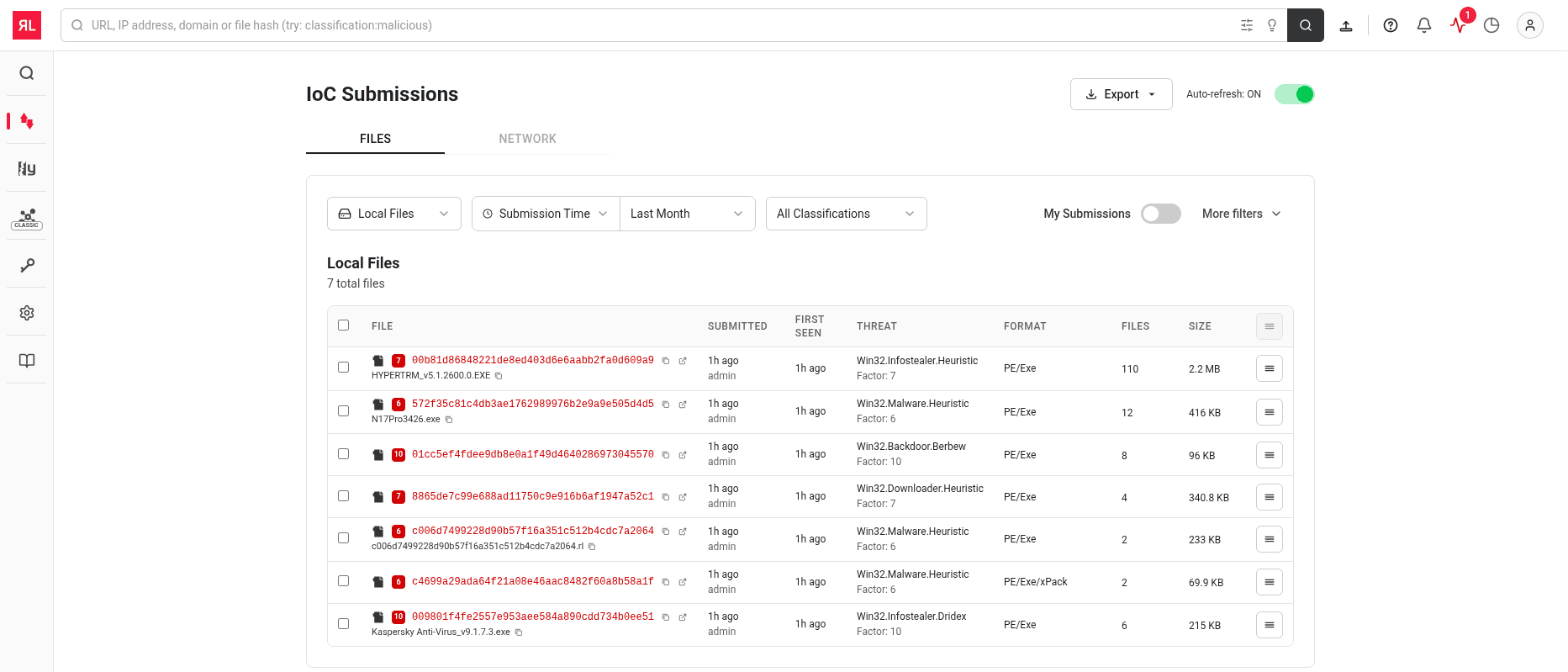
Page layout
The page includes a search bar at the top for searching by URL, IP address, domain, or file hash. Two tabs organize submissions by type: FILES (file submissions and analysis results) and NETWORK (network-based indicators like URLs, domains, and IPs).
Filters
Both tabs provide filtering options including submission time, classification, and a My Submissions toggle to show only your submissions. The FILES tab includes additional filters for file source (Local/Cloud), container type, submitter, and processing state. Select More filters to access advanced filtering options.
The Export button allows you to export submission data in various formats (CSV, JSON, XML) or copy file hashes to the clipboard. Enable Auto-refresh to automatically update the submissions list at regular intervals.
Submissions tables
FILES tab
The FILES tab displays submitted files with columns for filename and hash, submission time, first seen date, threat classification, file format, number of extracted files, and file size. Each row includes a color-coded icon indicating the classification status and an actions menu for additional options.
NETWORK tab
The NETWORK tab displays network indicators with columns for type (URL), network resource, first seen date, last seen date, classification, reputation score, and categories. Each row shows the URL with reputation indicators and threat classification details.
Working with submissions
Select any row to open the Sample Details page in a drawer panel. Use the checkboxes to select multiple items for batch export operations.
Related pages
- Dashboard — File submission interface
- Sample Details — Detailed analysis reports
- Search & Submissions Page (Classic UI) — Classic UI search documentation
- Advanced Search (Classic UI) — Advanced search syntax and features