Dashboard (New UI)
For documentation of the classic Dashboard, see Dashboard.
Overview
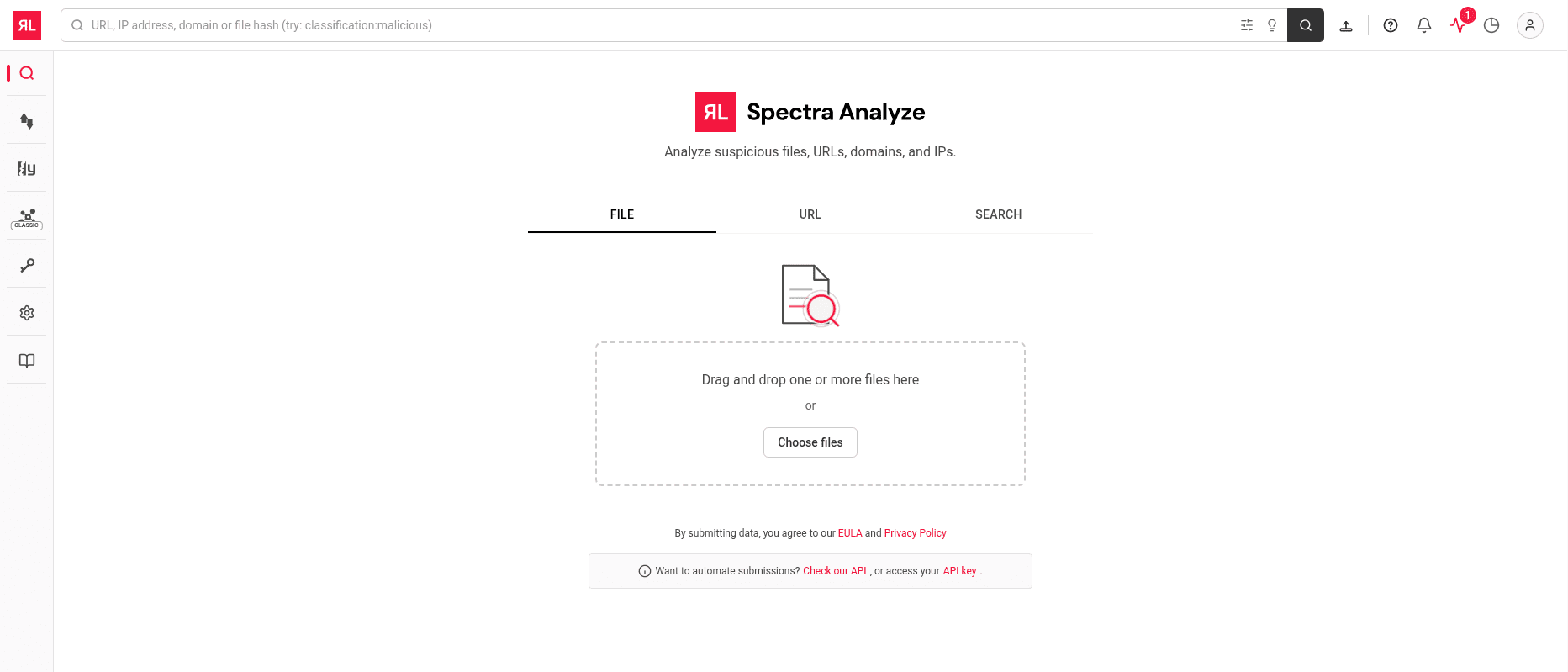
The Dashboard in the new Spectra Analyze UI serves as the primary landing page and file submission interface. It provides a streamlined, centered layout focused on file and URL submission.
Key differences from classic UI
The new Dashboard focuses on file and URL submissions with a tabbed interface (FILE, URL, and SEARCH tabs). Unlike the classic Dashboard, submission statistics, processing metrics, and classification distribution charts are not displayed on this page. To view these metrics, use the classic Dashboard.
Page layout
Submission tabs
The following tabs provide access to different submission and search methods:
- FILE - Upload files for analysis (default tab)
- URL - Submit URLs for analysis
- SEARCH - Search for previously analyzed samples
URL tab
The URL tab provides an interface for submitting URLs for analysis. Enter a URL in the text field and select Search to submit it for analysis. After submission, the Sample Details page opens displaying the analysis results for the submitted URL.
Search tab
The SEARCH tab provides a search interface for querying previously analyzed files. Enter a URL, IP address, domain, or file hash in the search field and select Search to execute the query. The search field includes placeholder text with syntax examples such as "try: classification:malicious".
Helper icons appear below the search field. The filter icon opens the quick search panel with advanced filtering options, and the lightbulb icon opens search suggestions and syntax help.
The SEARCH tab uses the same search syntax and capabilities as the classic UI Advanced Search feature. See Advanced Search for query syntax details.
File submission area
The FILE tab provides a drag and drop zone for uploading files, or you can select Choose files to browse and select files from your local system.
After selecting a file, a confirmation dialog appears showing the file hash (SHA256) and file size. Select Confirm upload to proceed with the submission, or Cancel to abort.
To customize the submission, expand Advanced Analysis Options to configure analysis settings. Available options include Static Analysis (Spectra Core), Threat Intelligence (Spectra Intelligence), and Dynamic Analysis (RL Cloud Sandbox). Select the desired analysis types before confirming the upload.
Left sidebar navigation
The left sidebar provides access to main application features:
- Search - Search and dashboard functionality (home page)
- IoC Submissions - View submission history and manage submitted indicators of compromise
- YARA Hunt - Create and manage YARA rules for threat hunting
- Graph - Visualize relationships between samples and entities (marked as "Classic")
- API Key - Manage API authentication keys
- Administration - System configuration and user management
- Documentation - Access product documentation
Related pages
- Dashboard (Classic UI) - Classic UI dashboard documentation
- Search & Submissions Page - Advanced search and filtering
- Sample Details - Detailed analysis reports
- Feature Gaps - Features not yet available in the new UI