New Spectra Analyze UI
Spectra Analyze includes a redesigned user interface that provides a modernized experience with improved usability and performance.
The new UI is an opt-in preview feature and does not fully replace the classic interface. Users can switch between UIs at any time through their user preferences.
Enabling the new UI
The new UI is an opt-in preview feature and does not fully replace the classic interface. To enable the new UI, administrators can enable it under Administration > Configuration > Experimental Features.
Once enabled, the new UI can be accessed through your user preferences. The toggle is a per-user setting, allowing each user to choose their preferred interface independently.
To switch to the new UI, select the User menu in the top right corner of the interface and choose Switch to New UI. The interface will reload and display the new UI.
To switch back to the classic UI, select the User menu and choose Switch to Classic UI. The interface will reload and display the classic UI.
What's different
The new UI introduces significant changes to the interface layout and navigation while maintaining the same analysis capabilities.
Navigation and layout
- Left sidebar navigation - Main navigation moved from top header to a persistent left sidebar
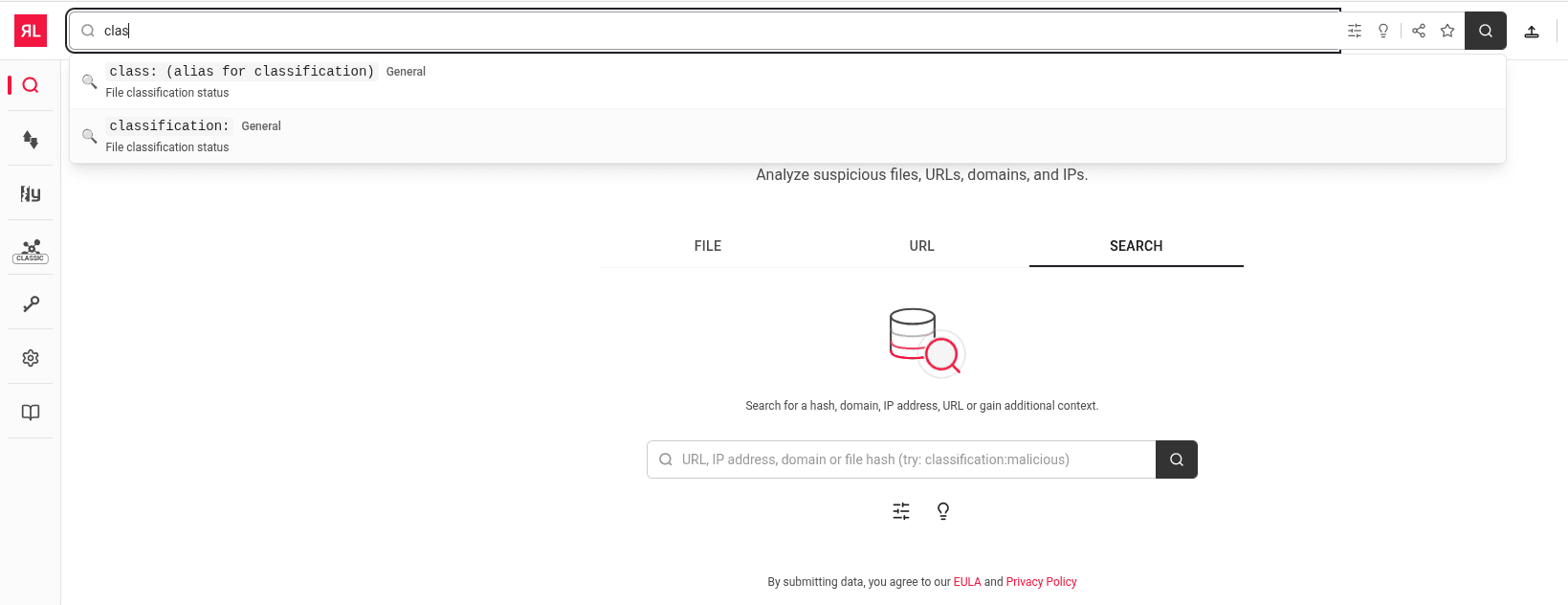
- Global search bar - Search field at the top of every page for quick access to file lookups
- Global header icons - Persistent toolbar icons at the top right of every page
- Drawer-based details - Sample details open as a side panel instead of a full page
- Tabbed dashboard - FILE, URL, and SEARCH tabs on the main dashboard
Global header icons
The top right of the interface contains icons accessible from every page:
- Upload file - Quick access to file submission
- Help - Contact support
- Alerts - View unresolved alerts with count badge
- System health - View system health status including disk usage, memory, and CPU utilization
- Quota status - View API quota usage for analysis queries
- User menu - Access profile settings, API key management, classic UI toggle, and sign out
Global search
The search bar at the top allows you to search for files by URL, IP address, domain, or file hash. Helper icons provide access to advanced filtering and search syntax help. The search uses the same syntax and capabilities as the classic UI Advanced Search.
See Advanced Search for query syntax details.
Changed pages
- Dashboard - Redesigned as a submission-focused interface with FILE, URL, and SEARCH tabs
- IoC Submissions - New submissions list and search page combining submission history with filtering
- Sample Details - Opens as a drawer panel with reorganized tabbed sections
Features linking to classic UI
Some features are not yet available in the new UI and will redirect to the classic interface when accessed. These are marked with a "Classic" label:
- Graph - Graph visualization feature
- Additional features may link to classic UI as the new UI continues development
See Feature Gaps for a complete list.
Unchanged functionality
The following features work identically in both UIs:
- API Documentation - All API endpoints remain the same
- File analysis - Analysis engines and capabilities unchanged
- YARA rules - Rule creation and management
- Administration - Configuration and user management
- Alerts - Alert creation and monitoring
- Search syntax - Query syntax and capabilities
Feature availability
The new UI is being rolled out incrementally. Some features available in the classic UI may not yet be available in the new UI. See Feature Gaps for a complete list of features that are not yet available in the new UI.
If you need access to a feature that is not yet available in the new UI, you can temporarily switch back to the classic UI.
Providing feedback
If you encounter issues or have suggestions for the new UI, contact ReversingLabs Support with:
- Your appliance version
- A description of the issue or suggestion
- Screenshots if applicable
- Steps to reproduce (for issues)
Migration timeline
The new UI is currently opt-in. ReversingLabs will announce any future plans to make the new UI the default interface well in advance, giving users time to familiarize themselves with the changes.
Getting started
- Enable the new UI by selecting Switch to New UI from the User menu in the top right corner
- Explore the Dashboard to submit files and URLs using the tabbed interface
- View your submission history in IoC Submissions with filtering and search options
- Select any file to open Sample Details in a drawer panel while keeping your submissions list visible
- Switch back to classic UI anytime from the User menu if you need features not yet available in the new UI
Next steps
- Dashboard - File and URL submission interface with integrated search
- IoC Submissions - Submission history and search functionality
- Sample Details - Drawer-based analysis reports with tabbed sections
- Administration - System settings and configurations
- Feature Gaps - Features not yet available in the new UI