MCP Server Configuration for AI Assistants
The MCP (Model Context Protocol) server enables AI assistants to connect to Spectra Analyze APIs for malware reporting, IOC triage, and reputation lookups. The following steps describe how to configure the MCP server integration with Claude Code or other MCP-compatible AI assistants.
Official marketplace integration for Claude.ai is currently in the submission phase and will be available in the near future. For immediate access, refer to the Configuration examples section below.
Prerequisites
- MCP server must be enabled on Spectra Analyze. Navigate to Administration > Configuration > MCP Server and check the Enable MCP Server option. For more information, see MCP Server.
- An active Spectra Analyze account, or
- (legacy) A valid API token for the Spectra Analyze instance.
Configuration parameters
Spectra Analyze hostname (SPECTRA_ANALYZE_HOST) is usually in the form of instance-name.reversinglabs.com.
- MCP server URL (no trailing slash):
https://SPECTRA_ANALYZE_HOST/mcp/ - OpenID client ID:
mcp-analyze-client - OpenID client secret: not required, leave empty
- OAuth scope (if explicitly requested):
appliance-access
Example: Claude Code (CLI)
- Add the Spectra Analyze MCP to a list of MCP servers
- Replace
SPECTRA_ANALYZE_HOSTwith the hostname of your SA instance claude mcp add --client-id mcp-analyze-client -t http spectra-analyze https://SPECTRA_ANALYZE_HOST/mcp/
- Replace
- Start claude code
- Use the
/mcpcommand to connect to the configuredspectra-analyzeMCP server - Authenticate as required by the OAuth flow
- Once completed you can use the tools exposed by the server via Claude Code
Example: Calude Desktop
- Open Claude Desktop settings
- Navigate to the
Developertab in the left sidebar - Click
Edit Config, this opens the configuration json file - Copy the
spectra-analyzeobject into themcpServerssection of your configuration - Replace
SPECTRA_ANALYZE_HOSTwith your Spectra Analyze hostname
{
  "mcpServers": {
    "spectra-analyze": {
      "command": "npx",
      "args": [
        "-y",
        "mcp-remote@latest",
        "https://SPECTRA_ANALYZE_HOST/mcp/",
        "--static-oauth-client-info",
        "{ \"client_id\": \"mcp-analyze-client\" }"
      ]
    }
  }
}
(Legacy) Configuration steps
- Download the .mcpb file.
- In Claude Desktop, navigate to Settings > Extensions > Advanced Settings > Install Extension.
- Click Install.
- Set MCP Server URL to
https://SPECTRA_ANALYZE_HOST/mcp/and replaceSPECTRA_ANALYZE_HOSTwith your Spectra Analyze hostname. Ensure that the URL includes a trailing slash, or the connection will fail. - Set Token to a valid API token for the Spectra Analyze instance.
- Save, and toggle the button to enable the service.
Usage
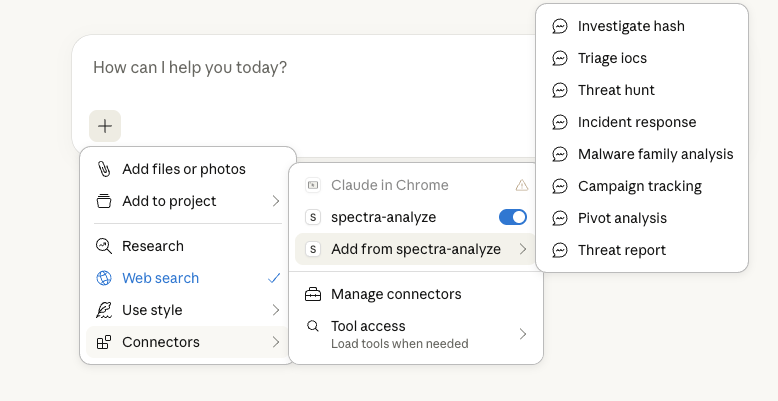
Use the pre-canned prompts by going to + > Connectors > Add from Spectra Analyze, or start asking questions directly. Example queries:
- "Retrieve detailed threat analysis for the file 5884d853f85eb536244f354ba5d6cf9b4e702c7f"
- "Check network reputation for 45.148.11.242"
- "Search for samples targeting industrial control systems"
- "Gather some hashes for windows PE samples with sandbox evasion and anti-analysis tricks that I can use to test our company sandbox"
Available tools
Once connected, AI assistants can invoke the following tools to query Spectra Analyze. Each entry lists the tool's parameters and an example request.
get_file_reputation
Return file classification and reputation.
Parameters:
hash: MD5, SHA1, or SHA256 hash of a file.
Example:
{
  "hash": "d41d8cd98f00b204e9800998ecf8427e"
}
get_network_reputation
Look up the reputation of a network indicator (domain, IP, or full URL) and return the results including GeoIP, business context, and an automated verdict with a risk score.
Parameters:
indicator: IP address, domain, or URL to check.
Example:
{
  "indicator": "example.com"
}
advanced_search
Search malware samples on the Spectra Analyze instance using Solr query syntax. Use instance='local' for on-prem samples or instance='cloud' if your Spectra Analyze is connected to Spectra Intelligence.
Parameters:
query: Search query string withfield:valuesyntax.limit: Maximum results per page (1-500, default: 100).instance:cloudorlocalsort: Sort results by field, for example, sha1, firstseen, threatname (default: None).
Example:
{
  "query": "classification:malicious sampletype:PE",
  "instance": "cloud",
  "limit": 100,
  "sort": null
}
enhanced_threat_analysis
Comprehensive threat intelligence with AI-powered insights, combining multiple analysis engines for comprehensive threat assessment.
This tool provides in-depth analysis of a sample including:
- File classification and threat verdict
- Static and dynamic analysis results
- Network indicators (domains, IPs, URLs)
- Behavioral indicators (file paths, registry keys, processes, mutexes)
- MITRE ATT&CK techniques and tactics
- File similarity analysis (RHA1 and imphash)
- Antivirus scan results
- Extracted files analysis
Parameters:
hash: File hash for analysis.
Example:
{
  "hash": "d41d8cd98f00b204e9800998ecf8427e",
}
get_server_info
Retrieve information about the status of the MCP server.