File and URL Submissions
Submitting files for analysis
Files can be submitted to the appliance:
-
manually through the graphical user interface:
- as a direct file upload
- as a link to the file which the appliance then downloads
-
using the Submissions API
-
using Connectors, which pull files from one or more configured sources
-
by pivoting from a previously analyzed sample:
- from the Spectra Detect Manager dashboard
- from an S3 file link in a Spectra Detect Worker report
-
using the ReversingLabs browser extension.
tipThe ReversingLabs browser extension is available on Chromium-based browsers. It enables you to query domains, URLs, IP addresses, and hashes from web pages and submit files for analysis. For more information, see ReversingLabs browser extension documentation.
Manual uploads
To submit files programmatically as part of an automated workflow, see the Submissions API.
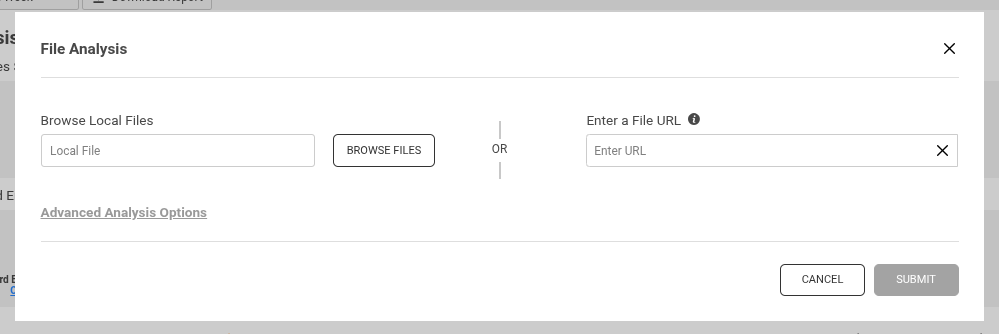
To submit files manually from the Spectra Analyze UI, do the following:
- In the header bar, click Submit, and then select File Analysis.
- In the File Analysis dialog, click Browse Files to upload files from your local system, or enter a direct File URL.
- Optionally, to customize the submission, click Advanced Analysis Options and choose specific analysis services.
- Finally, click Submit to process the files using the current appliance configuration.
A progress bar in the header indicates the upload status while files are uploading.
Navigating away from the page or refreshing the browser tab during upload is not supported and will cancel the upload.
Advanced analysis options
Uploaded samples are analyzed based on your current appliance settings, but you can make a one-time adjustment for each upload, such as sending the file to Threat Intelligence (Spectra Intelligence) for threat reputation info, or using one of the sandbox integrations.
The following options are available:
-
Local Analysis: all uploaded files are processed with static analysis by the Spectra Core engine. This analysis is always performed and cannot be disabled.
- Local Only Analysis: if selected, the file is analyzed exclusively on the appliance and is not sent to any configured integrations, sandboxes, or Spectra Intelligence services.
-
RL Analysis: ReversingLabs analysis services. The following options are available if configured on the appliance:
- Threat Intelligence: submits the file to Spectra Intelligence for threat reputation analysis. Enabled by default. Automatically selected when Cloud Sandbox or Interactive Analysis is enabled.
- Cloud Sandbox: submits the file to ReversingLabs Cloud Sandbox for dynamic analysis. When selected, the following additional options appear:
- Platform: target operating system for execution, for example Windows 11.
- Locale: language and regional setting, for example en-US.
- Geolocation: simulated geographic location, for example United States.
- Execution Timeout: duration of the sandbox session, between
30and500seconds; default:200. - File Name: custom filename for the submitted sample. If not provided, the Smart Sample Naming algorithm is used.
- Internet Simulation: run dynamic analysis using a simulated network environment.
- Interactive Analysis: submits the file for interactive analysis in a browser-based sandbox session with manual control over execution. When selected, the following additional options appear:
- Platform: target operating system for execution, for example Windows 11.
- Locale: language and regional setting, for example en-US.
- Geolocation: simulated geographic location, for example United States.
- Execution Timeout: duration of the sandbox session, between
30and500seconds; default:200. - File Name: custom filename for the submitted sample. If not provided, the Smart Sample Naming algorithm is used.
- Auxiliary Analysis: submits the file for auxiliary analysis.
-
Integration Analysis: third-party dynamic analysis sandbox integrations. The available integrations depend on the appliance configuration. For more information, see Third-party integrations.
-
Protected File: if submitting a password-protected archive, provide the file password here. The archive and password are discarded after unpacking.
noteThis feature expects the ZIP file to contain only one file and, upon successful extraction, uploads only the extracted file and discards the archive. Only CRC32 encrypted ZIP files are supported. AES encryption is not supported at this time.
This specific unpacking mechanism is triggered by providing a password. For general password-protected archive usage uploads, where multiple files can be extracted and processed, perform a regular upload with a preconfigured Password list set up under Administration > Configuration > General.
-
Sources: both values are displayed on the Sample Details > Sources > Uploads tab.
- Source Tag: user-defined origin identifier for the upload. Uploads can be searched using the
upload-source-tagkeyword orupload-datagroup keyword. - Origin Link: an external link to the original location (URL) from which the file was obtained.
- Source Tag: user-defined origin identifier for the upload. Uploads can be searched using the
File processing
When a file is submitted to the appliance, it is processed with Spectra Core. Depending on the appliance configuration, samples with supported file types can be automatically sent to dynamic analysis services after they are submitted to the appliance. The file becomes visible on the Search & Submissions > Local tab.
Detailed analysis results can be viewed in the Expanded Details section, or on the file's Sample Details page.
The duration of the analysis depends on file sizes and file types, as well as the number of files extracted during analysis. Extracted files are also analyzed separately.
After initial processing by Spectra Core, users can optionally submit it to Spectra Intelligence and/or supported dynamic analysis services, if configured on the appliance. Spectra Intelligence scanners that support archive unpacking and heuristic analysis automatically perform those steps during processing.
For CAPE and Joe Sandbox, previously analyzed files are not automatically sent for analysis again if the Submit only distinct files option is configured. Administrators can configure this on the Administration > Integrations page.
File size restrictions
- The maximum supported file size for upload on Spectra Analyze is 10 GB. This value can be configured in Administration > Configuration > General > File Size Limit.
- Files larger than 400 MB cannot be submitted for dynamic analysis (individual dynamic analysis integrations have even lower limits).
- YARA rulesets are not applied to extracted files larger than 700 MB.
New files cannot be submitted to Spectra Analyze if the disk space usage on the appliance exceeds the set value. If this happens:
- manually remove old samples
- ask the administrator to run the Backup and Purge action before continuing to submit new files
- increase the disk size under Administration > Configuration > Resource Usage Limits.
Pivoting from Spectra Detect
If Spectra Analyze is connected to Spectra Detect, either to individual Workers or a cluster managed by Spectra Detect Manager, it can pull files from a preconfigured S3 bucket or directly from Spectra Detect Manager. Both of these options must first be configured on Spectra Detect.
The pivot link is present in the dashboard of Spectra Detect Manager, as well as in the Worker JSON report under file_link. When you open the link, Spectra Analyze pulls the previously analyzed file from the preconfigured source and reanalyzes it.
Imported files are tagged with the spectra_detect tag.
Submitting URLs for analysis
The URL analysis service provides comprehensive analysis of submitted URLs through advanced web intelligence gathering and threat detection capabilities. The service performs DOM analysis to detect malicious content, captures visual evidence, maps network infrastructure, like IP addresses, DNS, SSL/TLS certificates or domain registration, and executes URLs in sandbox environments to observe runtime behavior and track redirection chains.
To submit URLs programmatically as part of an automated workflow, see the Submissions API.
To submit URLs manually from the Spectra Analyze UI, do the following:
-
In the header bar, click Submit, and then select URL Analysis.
-
In the URL Analysis dialog, enter the full URL of a website including the protocol (https://www.example.org), or a full link to a single file (http://www.example.org/documents/reports/year-report.pdf). Supported protocols are HTTP and HTTPS.
Crawl depthFiles are downloaded only from the submitted URL with no recursion (crawl depth = 1).
For example, if you submit
http://www.example.com/freshcontent, only that specific URL is analyzed, andhttp://www.example.com/freshcontent/newestis not. -
Optionally, click Advanced Analysis Options to configure dynamic analysis and URL crawling settings:
- Dynamic Analysis: execute the sample in a secure virtual environment to observe runtime behavior, complementing static analysis by capturing dropped files, network activity (PCAP), memory strings, and screenshots. Available services:
- Cloud Sandbox: same options as file submission Cloud Sandbox.
- Interactive Analysis: same options as file submission Interactive Analysis.
- Joe Sandbox: for more information, see Joe Sandbox.
- URL Crawling: download and analyze files from the submitted URL. For more information, see Crawling methods.
- Analyze Crawled Files (Cloud): uses Spectra Intelligence to crawl the URL.
- Analyze Crawled Files (Local, On-Device): crawls the URL directly from the appliance. The machine accesses the remote site through your network.
- Dynamic Analysis: execute the sample in a secure virtual environment to observe runtime behavior, complementing static analysis by capturing dropped files, network activity (PCAP), memory strings, and screenshots. Available services:
-
Click Submit to confirm the submission, or Cancel to close the dialog. The submission cannot be confirmed if the URL is invalid.
The service downloads and analyzes up to 50 samples, each up to 100 MB, per analysis, with files processed through the ReversingLabs threat detection pipeline.
Crawling methods
Under Advanced Analysis Options, users can optionally enable URL Crawling to download and analyze files from a submitted URL. Crawling options are managed by the administrator and can be configured under Administration > Configuration > URL Analysis. Crawling is done in the following ways:
-
Cloud: by default, URLs are crawled using the Spectra Intelligence crawling method, which requires Spectra Intelligence to be configured on the appliance.
When using the Spectra Intelligence crawling method, users have the additional option of submitting the URL for automated dynamic analysis to the ReversingLabs Cloud Sandbox, for Interactive analysis, which provides manual control over the browser session during execution, or for third-party analysis if any are configured.
-
Local, On-Device: if enabled by the appliance administrator, users can also select the Local crawling method. This method doesn't require Spectra Intelligence to be configured, and disables all Spectra Intelligence features, such as dynamic and interactive analysis.
For more information on these methods, refer to the Privacy of submitted files and URLs chapter.
URL analysis results
The Search & Submissions page displays comprehensive analysis results for the submitted URL, including all downloaded files, network intelligence data, visual evidence, and behavioral analysis findings. If any of the analyzed components are malicious or suspicious, the overall verdict for the URL reflects the highest threat level detected.
The submission type indicator icon on the left side of the page helps distinguish between files downloaded to the appliance via a URL (the link icon) and files directly submitted to the appliance (the folder icon).
Analyzing data from submitted URLs
The analysis duration depends on multiple factors including the number of files downloaded (up to 50), their sizes and file types, DOM complexity, network infrastructure resolution, and dynamic execution requirements. Each downloaded file is also analyzed separately through the complete threat detection pipeline. The timeout for URL submissions is 45 minutes.
URL submissions undergo comprehensive analysis including static file analysis with the Spectra Core engine, network infrastructure mapping, DOM analysis, and visual documentation. Users can manually send components for additional analysis to Spectra Intelligence and/or configured dynamic analysis services using the Reanalyze option. This integration with Spectra Intelligence and dynamic analysis services must be configured by appliance administrators.
All files and websites downloaded to the appliance via the URL submission dialog are automatically assigned the URL Download user tag. This tag is visible in the Expanded Details and on the Sample Details page for every file and website. Clicking the tag opens the Tags page filtered to display all files with the URL Download tag. Users can then sort the files and perform bulk actions, such as reanalyzing them or adding them to alert subscriptions.
URL submission restrictions
The URL analysis service has the following limitations:
- File limits: up to 50 files can be downloaded and analyzed per URL submission, with each individual file limited to 100 MB.
- Total data limit: the maximum allowed size of all data downloaded from submitted URLs can be configured by the appliance administrator. By default, it is limited to 200 MB. This value is configurable by appliance administrators under Administration > Configuration > URL Analysis. The maximum configurable value is 700 MB.
- Crawl depth: analysis is limited to the submitted URL only (crawl depth = 1) with no recursive crawling of linked pages.
In addition to these limits, submitting a URL using the Spectra Intelligence crawling method also compares individual components of the submitted URL to the Maximum Fetch File Size value under Administration > Configuration > Spectra Intelligence. Any files going over this limit are skipped. The maximum configurable value is 2000 MiB.
If the download request fails, the URL submission is marked as failed. Users can attempt to reanalyze the submission by selecting Reanalyze in the Actions menu (☰). This option is available for individual submissions only, and not for multiple submissions at once.
Privacy of submitted files and URLs
For more information and best practices, see Privacy & Data Sharing.
File submissions
All files submitted to the appliance are accessible to all users with accounts on that Spectra Analyze instance.
While each submission is associated with the particular user who submitted the file or URL, actual files on the local appliance system are not owned by any of the users in the traditional sense of file ownership. Therefore, all users on the Spectra Analyze instance can download, reanalyze, subscribe/unsubscribe, add tags, and manually change classification for any file uploaded by another user.
URL submissions
When submitting URLs for analysis, be aware of the following privacy implications:
- URL analysis can only access and analyze publicly reachable online resources.
- All submitted URLs and downloaded files are treated as public and accessible to all Spectra Intelligence users.
- URLs are automatically normalized during submission, which may remove or convert duplicate and empty elements.
Crawling methods
Depending on which crawling method is selected, files obtained from the submitted URLs are treated differently.
- The Cloud/Spectra Intelligence crawling method (default) is more reliable when working in restricted network conditions, and ensures fewer failed URL analyses. However, all downloaded files are treated as public, and are visible and accessible to all Spectra Intelligence users. The prerequisite for this is a properly configured Spectra Intelligence account on the appliance.
- The Local/On-Device crawling method treats the URL as any other locally submitted file. The contents of the URL are crawled and downloaded directly. This method can be used without a Spectra Intelligence account and must be enabled by the appliance administrator. If Spectra Intelligence is configured and is using a proxy, the same proxy is used to crawl the URLs when using this method.
Appliance administrators can delete files submitted by other users. Regular users can only delete their own submissions.
Spectra Intelligence
If the appliance is connected to Spectra Intelligence, all submissions can be:
- Manually uploaded to be analyzed with AV engines. This is done with the Reanalyze option.
- Automatically uploaded if enabled under Administration > Configuration > Spectra Intelligence > Automatic Upload to Spectra Intelligence. This is disabled by default.
Whether submitted files are shared with other ReversingLabs customers depends on the role configured for the Spectra Intelligence account used by the appliance.
Spectra Intelligence accounts created to be used with Spectra Analyze appliances are always configured as private and non-shareable, meaning that other ReversingLabs customers may only be able to access analysis results for the files, but not retrieve their contents.
However, if those same files are uploaded to Spectra Intelligence as shareable from another source, they cease to be treated as private. In that case, other ReversingLabs customers may be able to download the files, their metadata, and their analysis results through other ReversingLabs solutions such as APIs and Feeds.
If Spectra Intelligence is not configured on Spectra Analyze, files are only preserved on the local appliance system and accessible only to users on that instance.
ReversingLabs Cloud Sandbox
Whether submitted files, PCAP files, dropped files, and memory string dumps are shared with other ReversingLabs customers depends on the role configured for the Spectra Intelligence account used to upload files.
If the account is configured to upload all files as not shareable (private), other ReversingLabs customers are only able to access analysis results, but not retrieve the actual contents of uploaded files, dropped files, PCAP files or memory string dumps. This is the default setting for Spectra Intelligence accounts created to be used on Spectra Analyze appliances.
If the account is configured to upload all files as shareable (not private), other ReversingLabs customers are able to access analysis results, but also download the uploaded files, dropped files, PCAP files, and memory string dumps generated during file execution.