ReversingLabs Cloud Sandbox
Overview
ReversingLabs Cloud Sandbox executes files in isolated sandbox environments to observe runtime behavior, complementing static analysis for comprehensive threat detection. For more information about how dynamic and static analysis work together, see Static vs. Dynamic Analysis.
The Cloud Sandbox supports the following analysis modes:
- Automatic analysis — the sample is detonated automatically and the results are collected without user interaction.
- Interactive analysis — the sample is executed in a live session where the analyst can manually interact with it in real time. This is useful for malware that requires user interaction, such as clicking through installer menus or entering passwords.
Samples can be analyzed on the following platforms: Windows, macOS, and Linux. The sandbox automatically selects the most appropriate platform based on the detected file type, but users can also choose a specific platform when submitting a sample. See Analysis profiles for more details.
Each completed analysis produces a behavior report that includes network indicators, behavioral indicators, process activity, registry and file system changes, and downloadable artifacts.
If the service is enabled, historic dynamic analysis results are shown for all samples that have them. Detected indicators of compromise are available through Advanced Search using the uri-dynamic and ipv4-dynamic keywords, as well as through sections on the Sample Details Summary page.
Files can also be submitted directly to the ReversingLabs Cloud Sandbox via the Dynamic Analysis Submission API.
For this service to be available, the appliance has to be connected to Spectra Intelligence.
For more information about configuring this integration, see ReversingLabs Cloud Sandbox.
Dynamic analysis reports
Full report details consist of:
- General file details: file name, size, type, and hashing information (MD5, SHA1, SHA256).
- Network indicators: detailed list of URLs, domains, and IP addresses contacted by the sample during detonation.
- Behavioral indicators: chronological list of actions taken by the sample, categorized by severity and severity level.
- Process activity: process creation tree and details about each process run during the analysis.
- Registry and file activity: comprehensive log of registry changes and file system modifications.
- Screenshot gallery: click the thumbnail on the right to open a gallery of all collected screenshots, with the option to automatically advance through them in a slideshow. At the top of the gallery dialog, users can switch between different analyses to see the related screenshots.
- History of dynamic analysis results: table with the option to download dropped files and other artifacts for every individual analysis. These files are available for download for 1 year. If the analyzed sample is an email, this table also contains expandable sections with analysis reports for attachments and URLs found within the analyzed email sample.
- Additional information: available in a tabbed section with specific information obtained in dynamic analysis. This section can be filtered to show information from all performed analyses, or from a specific analysis. See ReversingLabs Cloud Sandbox API for a detailed explanation of individual fields.
After a dynamic analysis run is completed, the following artifacts are available for download:
- Screenshots
- PCAP file
- Memstrings
- Dropped files
The artifacts depend on each dynamic analysis run and can be downloaded from the History of Dynamic Analysis Results table, while the dropped files are available for download in the Dropped Files tab. These files are available for download for 1 year, the standard retention period for the Cloud Sandbox. The artifacts are downloaded as .7zip archives and their password is infected. Downloading artifacts is possible only through the GUI.
On the report page, you can also click the buttons in the top right corner to do the following:
- Reanalyze: reanalyze the sample using the ReversingLabs Cloud Sandbox.
- Actions:
- Create PDF/HTML: download the report as HTML or PDF. When a PDF or HTML report is created, a new one cannot be created before 30 minutes have expired. Downloading HTML or PDF reports for dynamic analysis is also possible via API. If a new report export is necessary before the 30 minute period expires, use the Dynamic Analysis Report API.
- Download Latest Dropped Files: download the latest dropped files.
- Send Latest Dropped Files to Static Analysis: send the latest dropped files to static analysis.
Android analysis reports
When the analyzed sample is an Android application, the report tabs are adjusted to show Android-specific information. The following tabs are available for Android samples:
- APK: static analysis data extracted from the APK, including the application icon, label, minimum and target SDK versions, package name, permissions, activities, services, receivers, and certificate details.
- Android Behavior: behavioral data collected during dynamic analysis, including started services, registered receivers with their intents, and requested permissions with their execution status.
The Malware Config tab is not available for Android samples, as it is not supported on the Android analysis platform.
Analysis options
| Option | Description |
|---|---|
| Platform | Determines the platform the sample is executed on. Available as a per-analysis setting during file submission, and default settings per file type can be configured under Administration > Integrations & Connectors > Integrations. |
| Timeout | How long in seconds a sample can run in the sandbox virtual machine. Default: 200, Min: 30, Max: 500. ReversingLabs Cloud Sandbox may allow the VM to run longer if additional runtime could extract more intelligence. The timeout value may differ from the total analysis time which is reported as duration, and which includes sample execution including any extra time granted by RLCS, VM restore, client setup, and post-processing, for example, sending dropped files to the host. |
| Custom filename | A custom filename that helps track the file across ReversingLabs services. If omitted, the system applies smart sample naming automatically. |
| Internet simulation | Defaults to false. If set to true, dynamic analysis is performed without connecting to the internet and uses a simulated network instead. Setting to false is the same as omitting it from the request. HTTPS traffic information is not monitored when using this parameter. |
| Network traffic obfuscation | When internet simulation is disabled/omitted and samples are allowed to connect to the internet, network traffic obfuscation measures are implemented to protect the analysis infrastructure. Traffic obfuscation is achieved through VPN routing that masks the origin of network requests, preventing external entities from identifying the analysis environment. |
| Geolocation | Geographic location associated with the sample's network activity, reflecting the configured country from which the network traffic is egressed, set via VPN or similar routing methods. |
| Interactive analysis | Execute the sample and interact with it in an interactive session. Only available through Analyze/Reanalyze dialogs. If selected, a new tab opens with the interactive session. Once the session expires or is stopped by the user, its results are visible under Dynamic Analysis > Cloud Sandbox. |
Interactive analysis
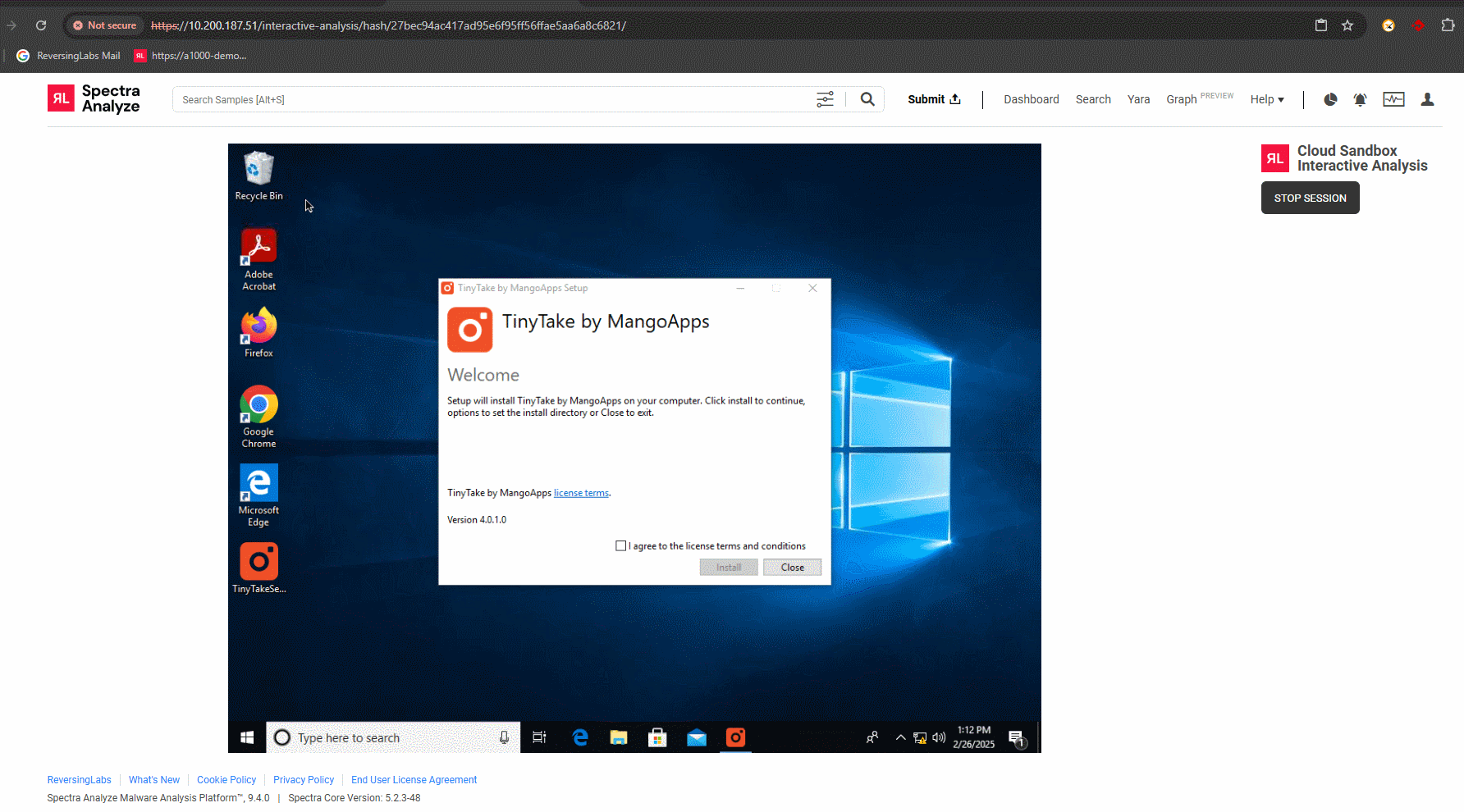
ReversingLabs Interactive Analysis allows analysts to execute a sample and manually interact with it within an isolated virtual environment. This is particularly useful for dealing with malware that requires user interaction, such as clicking through installer menus or entering passwords, or for observing real-time behavior.
At this time, Interactive Analysis is supported only for Windows platforms.
Interactive file analysis
Interactive sessions for files allow users to observe the detonation process in real-time. Analysts can:
- Manually trigger malicious payloads.
- Navigate through evasion-check delays.
- Observe file system and registry modifications as they happen.
Interactive URL analysis
Interactive sessions for URLs provide a way to safely browse to a suspicious link and observe the results. This includes:
- Following redirections to final landing pages.
- Interacting with phishing forms to observe downstream behavior.
- Identifying drive-by-download attempts and subsequent file execution.
Analysis profiles
The Cloud Sandbox detonates samples in controlled virtual environments to capture behavior across different operating systems. Supported platforms include:
- Windows: modern Windows versions including Windows 10 x64 and Windows 11 (22H2) are standard for dynamic detonation.
- Linux: general-purpose Linux environments for analyzing ELF binaries and scripts.
- macOS: specific macOS versions (including macOS 11 Big Sur) for inspecting Darwin-based threats.
The sandbox automatically selects the most appropriate profile based on the detected file type, ensuring the sample is executed in its native runtime environment.
Configuration settings
For more information about configuring this integration, see ReversingLabs Cloud Sandbox.
By default, Spectra Analyze automatically retrieves existing ReversingLabs Cloud Sandbox reports for files submitted to the appliance. If a file wasn't previously scanned in the ReversingLabs Cloud Sandbox, it can be manually uploaded for dynamic analysis, or you can enable Automatic upload to do this automatically.
While the retrieval of existing reports is a basic Spectra Analyze feature, submitting files for dynamic analysis using the ReversingLabs Cloud Sandbox is available only as a feature preview with an upload limit of five samples per day. When the analysis quota is exceeded, the appliance shows a warning message whenever a new file is manually submitted for analysis.
Full access to this feature is available at additional cost. For more information, contact ReversingLabs Sales Support.
If the Automatic file retrieval option is enabled, all files dropped during dynamic analysis that are within configured file size limits are downloaded to the appliance and analyzed locally.
To allow dynamic analysis results to affect the final sample classification, enable the Include in classification option. When enabled, all future sample uploads, as well as any reanalyzed samples, may receive their final classification from the ReversingLabs Cloud Sandbox. Samples that already had a recent dynamic analysis classification before the option was enabled update their classification once their Sample Details Summary page is opened, or during regular appliance synchronizations with Spectra Intelligence.
Only ReversingLabs Cloud Sandbox can be configured to affect the final sample classification. Other analysis results do not affect the overall final classification of the sample, but are, rather, another source of information for analysts.
Administrators can also specify which File types are automatically submitted for dynamic analysis. The maximum supported file size of each individual sample submitted to the ReversingLabs Cloud Sandbox is 400 MB.