ServiceNow SIR Integration with ReversingLabs Spectra Analyze
Version: 1.2.0 Status: Production Ready Last Updated: August 2026
Introduction
The ReversingLabs ServiceNow SIR Integration brings powerful threat intelligence from ReversingLabs Spectra Analyze directly into your ServiceNow Security Incident Response (SIR) workflows. Security teams can enrich indicators of compromise (IOCs) — including file hashes, domains, IP addresses, URLs, and binary files — against ReversingLabs' comprehensive threat database without leaving the ServiceNow platform.
Key Features
- File Hash Enrichment — MD5, SHA-1, SHA-256, SHA-512, SSDEEP, TLSH analysis results
- Domain Enrichment — DNS records, threat classifications, associated IPs, subdomain cascade
- IP Enrichment — Threat reputation, associated domains, historical resolution data
- URL Enrichment — Domain extraction, content analysis, threat classification
- Binary File Upload — Asynchronous file upload routed through the SIR Framework (hash lookup, up to 500 MB)
- Automatic Observable Cascade — Creates child observables from DNS records and extracted files
- Observable Broadcast Endpoint — Publish reclassification of enrichment results from Spectra Analyze.
- Notification Engine — Customizable incident creation and notifications to incident response teams
- Guided Configuration Page — Role validation, API key, service account, and feature toggles managed from one page; scripts not required anymore.
- Role-Based Access Control — Admin, analyst, and read-only roles for secure operations
- Audit Logging — Comprehensive integration logs for troubleshooting and compliance
- Auto-Enrichment on Creation — Business rule triggers enrichment when observables are created
- Enterprise Ready — Proxy support, configurable timeouts
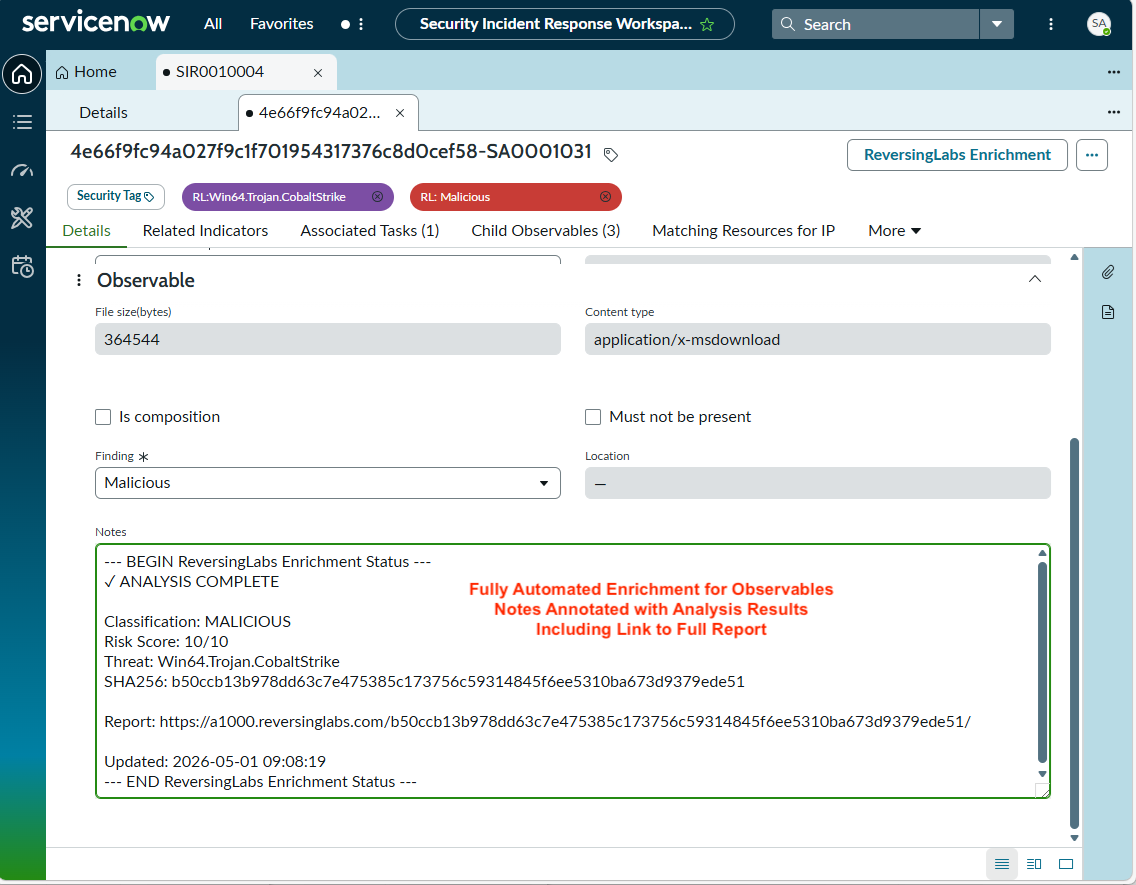
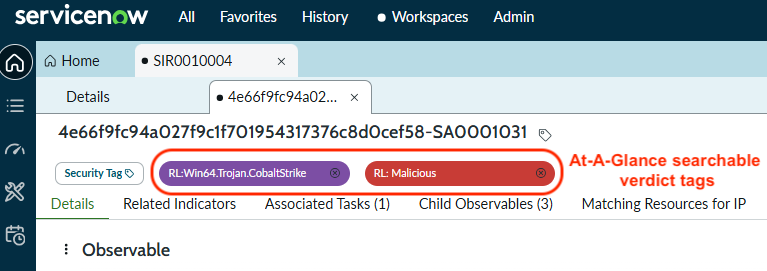
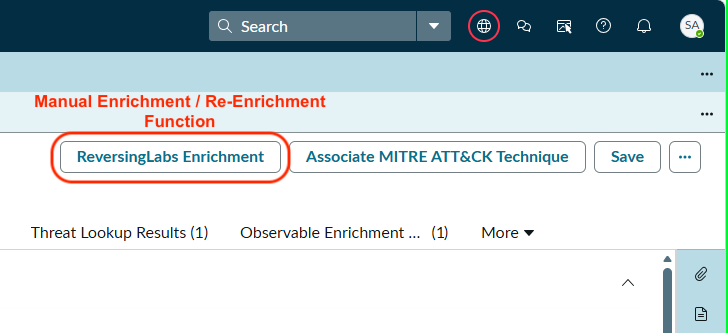
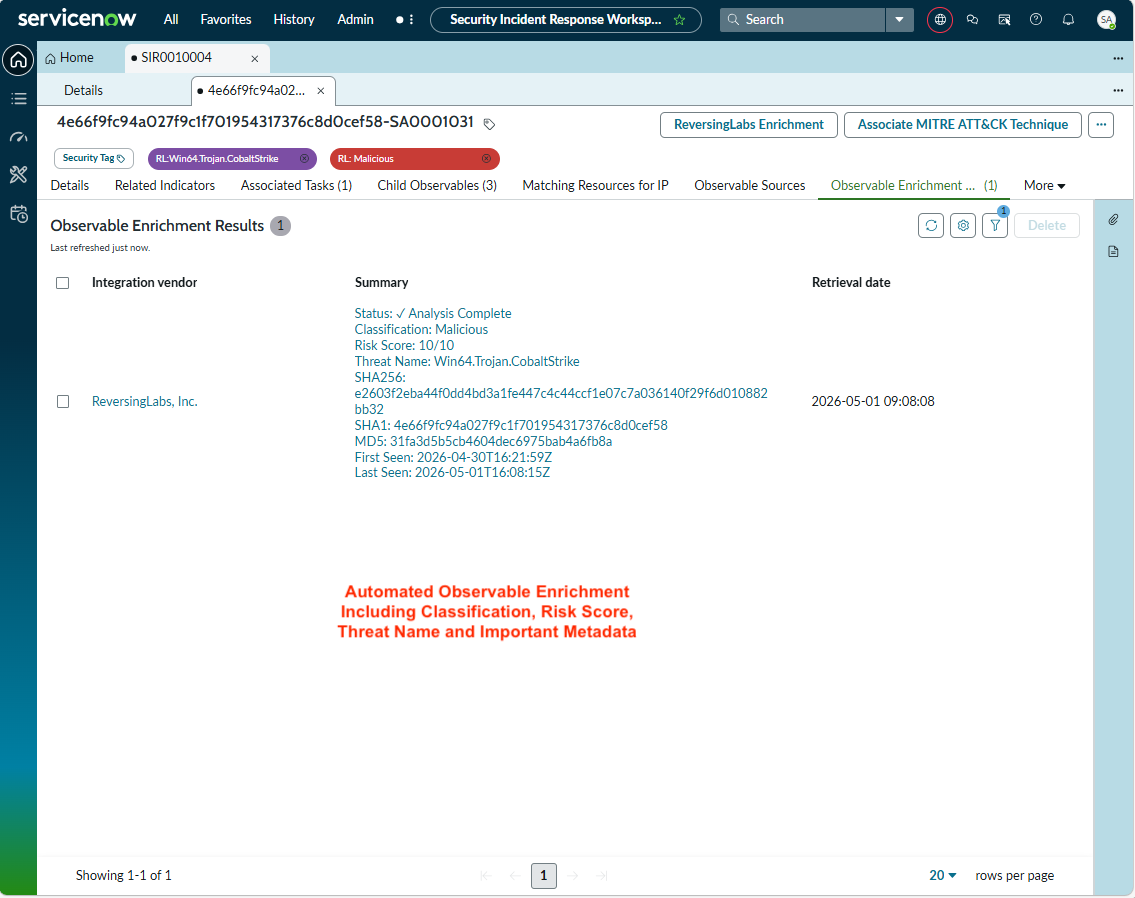
How It Works
Observable Enrichment
- Enrich — Once an observable (hash, domain, IP, URL, or file) is added to a Security Incident, ReversingLabs enrichment triggers automatically. The analyst can optionally click the ReversingLabs Enrichment button for newly added observables or to refresh enrichment for existing observables.
- Analyze — The integration queries ReversingLabs Spectra Analyze for threat intelligence on your indicator.
- Results — The observable is updated with threat score, verdict (MALICIOUS / SUSPICIOUS / CLEAN / UNKNOWN), classification, threat names, related indicators and RL specific tags which are both visible and searchable within ServiceNow. Child observables (e.g., IPs from a domain) are created automatically when enabled.
File Upload
Unknown or suspicious files which are uploaded via ServiceNow's Upload Secure File Attachment feature are automatically sent to ReversingLabs for binary analysis (up to 500 MB). Files are processed asynchronously, and the observable is updated with results once analysis is complete.
Data Flow Diagram

Requirements
ServiceNow Instance
- ServiceNow version Orlando or later (recommended: Paris, Zurich, or later)
- Security Incident Response (SIR) plugin (
sn_si) — active - Threat Intelligence plugin (
sn_ti) — installed with SIR - System Administrator role for installation
- ~10 MB available database space
ReversingLabs Account
- Active Spectra Analyze subscription (Standard User Role)
- Valid API key and endpoint URL (typically
https://a1000.reversinglabs.com) - Optional: Spectra Intelligence for enrichment of IOCs not yet analyzed by your Spectra Analyze instance
Network
| Direction | Protocol | Port | Destination | Purpose |
|---|---|---|---|---|
| Outbound | HTTPS | 443 | a1000.reversinglabs.com | Primary API endpoint |
| Outbound | HTTPS | 443 | *.reversinglabs.com | Recommended wildcard for future endpoints |
- No inbound connections required
- Optional: Proxy support for corporate environments with TLS inspection bypass for
*.reversinglabs.com
Supported Observable Types
| IOC Type | Supported | Examples |
|---|---|---|
| File Hash | ✓ | MD5, SHA-1, SHA-256, SHA-512, SSDEEP, TLSH |
| Domain | ✓ | example.com, malicious.net |
| IPv4 Address | ✓ | 192.168.1.1, 8.8.8.8 |
| IPv6 Address | ✓ | ::1, 2001:4860:4860::8888 |
| URL | ✓ | https://example.com/path, http://malicious.com |
| Binary File | ✓ | Executables, documents, archives (up to 500 MB) |
Installation & Deployment
Overview
Installation consists of three steps: install the Prerequisite Pack, install the application, and complete the guided configuration. All setup is handled through the web interface — no scripts required.
Step 1: Install the Prerequisite Pack
The Prerequisite Pack provides global helper components required by the application:
- Download
Admin_Prerequisites_v1.0.xmlfrom ReversingLabs or the ServiceNow App Store listing - Navigate to System Update Sets > Retrieved Update Sets
- Click Import Update Set from XML
- Upload the
Admin_Prerequisites_v1.0.xmlfile - Once imported, open the update set and click Commit
- Verify 6 global Script Includes are created:
RL_GlideAjaxHandlerRL_ServiceHelperRL_HashHelperRL_FileUploadHandlerRL_NotificationEngineRL_BroadcastEndpoint
The app scope cannot contain global-scope code; the Prerequisite Pack must be imported and committed first.
Step 2: Install the Application
Install the application from the ServiceNow App Store:
- Navigate to All Available Applications
- Search for "ReversingLabs SIR Integration"
- Click Install
- Once installed, the ReversingLabs Configuration page will be available
Step 3: Complete Configuration
Configure the integration via the Configuration page:
- Navigate to ReversingLabs Configuration (accessible from the app menu or direct URL)
- Pre-requisite checks will indicate any issues. If prompted, grant the required roles to your user
- Core Settings:
- API Key: Your ReversingLabs Spectra Analyze API key
- API URL: Your Spectra Analyze endpoint (default:
https://a1000.reversinglabs.com) - Service Account Password:
- Click Generate — to generate and copy a randomized service account password into your clipboard (contains no colons) that will be saved when Complete Configuration is pressed.
- Feature Toggles:
- Automatic File Upload: ON (recommended)
- Observable Broadcast Endpoint: OFF (enable if needed)
- Click Generate Access Token - to generate and copy a randomized API access token to be used for the Spectra Analyze / ServiceNow connector that is created and set immediately without pressing Complete Configuration.
- Update Notifications: ON (recommended)
- Auto-Enrichment: ON (recommended)
- Click Complete Configuration
Service account credentials are generated on the Configuration page. Copy and store the Access Token immediately — it will not be displayed again.
Verify the Installation
- Navigate to Workspaces > Security Incident Response Workspace
- Create or open an existing Security Incident
- Go to the Investigation tab
- Find the link dropdown and choose add multiple
- Paste a test hash:
d41d8cd98f00b204e9800998ecf8427e - Wait 5-10 seconds, refresh — threat score and classification should populate
Configuration
Configuration Page
To get started, initial settings and services are configured via the ReversingLabs Configuration page. The page provides a guided setup experience with role validation and real-time feedback. All configured system properties are avaiable in System Definition > System Properties after installation.
Core Configuration
| Property | Default | Description |
|---|---|---|
| API Key | (empty) | ReversingLabs API key used for authentication to ReversingLabs Spectra Analyze. |
| API URL | https://a1000.reversinglabs.com | Spectra Analyze API endpoint URL. |
| Auto Upload | true | Automatically upload unknown files for analysis. |
| Max Upload Size (MB) | 500 | Maximum file size for upload. |
| Polling Interval (seconds) | 5 | Base polling tick. Actual intervals follow a tiered exponential backoff strategy — see note below. |
| Max Polling Attempts | 20 | Max polling retries (up to a 60-minute monitoring window using the tiered backoff strategy). |
File upload status polling uses a tiered exponential backoff strategy with a 5-second polling tick: intervals start short and progressively lengthen across the 20 attempts, covering a maximum monitoring window of 60 minutes.
Feature Toggles
| Property | Default | Description |
|---|---|---|
| Update Observable Notes | true | Write analysis notes to observable. |
| Update Observable Findings | true | Write detailed findings to observable. |
| Update Observable Threat Lookup | true | Create threat lookup records. |
| Update Child Observable Enrichment | true | Enrich child observables (cascade). |
| Update Child Observable DNS | true | Create DNS-based child observables from domain enrichment. |
| Update Child Observable Extracted Files | false | Create observables for files extracted during analysis. |
API Coverage & Enrichment Examples
File Hash Enrichment
When you enrich a file hash (MD5, SHA-1, SHA-256, or other hash type), the integration returns:
- Classification — MALICIOUS, SUSPICIOUS, GOODWARE, or UNKNOWN
- Threat Score — 0–100 severity rating
- File Metadata — Type, size, build date, compiler information
- Threat Names — Detected malware family names
- Digital Signatures — Certificate details and signer information
- Related Indicators — Associated domains, IPs, extracted files
Example enrichment result:
Observable: 2cf24dba5fb0a30e26e83b2ac5b9e29e1b161e5c1fa7425e73043362938b9824 (SHA-256)
├── Threat Score: 85
├── Verdict: MALICIOUS
├── Classification: Malware
├── Threat Names: Trojan.Generic, Ransomware.Lock
├── File Type: PE32 executable (GUI) Intel 80386
├── File Size: 1,234,567 bytes
├── Analysis Details: "This is a known ransomware variant..."
└── Tags: rl:classification=MALICIOUS
Domain Enrichment
Domain enrichment provides:
- DNS Records — A, AAAA, MX, NS, CNAME records
- Associated IPs — Current and historical IP resolutions (auto-created as child observables)
- Threat Status — Classification and risk rating
- Whois Information — Registrant details, registration date
Example:
Domain: malicious.net
├── Threat Score: 90
├── Verdict: MALICIOUS
├── A Records: 93.184.216.34, 93.184.216.35
├── MX Records: mail.malicious.net
├── Child Observables Created: 2 IP addresses
└── Associated Threats: Trojan.Generic, Adware.Minor
IP Address Enrichment
IP enrichment reveals:
- Geolocation — ASN and network information
- Reverse DNS — Associated domains
- Historical Data — Previous domain resolutions
- Threat Reputation — Known malicious activity classification
URL Enrichment
URL enrichment extracts:
- Domain & Host — Parsed from the URL
- Threat Classification — URL-level threat status
- Content Analysis — Detected threats in page content
- Redirects — Chained URL relationships
File Upload (Binary Analysis)
File upload adds:
- Asynchronous Processing — Files queued and processed in background
- Status Tracking — Polling queue shows pending → processing → completed
- Analysis Results — Classification, threat score, extracted indicators
- Progress Monitoring — Navigate to ReversingLabs Polling Queues to check status
Testing & Validation
Quick Test
- Navigate to Security Incident Response > Incidents
- Open an existing incident or create a new test incident
- Add an observable using one of the following known test values:
| Type | Test Value |
|---|---|
| MD5 Hash | e4d909c290d0fb1ca68ffaddb3940226 |
| Domain | malicious.net (if known in RL database) |
| IP Address | 8.8.8.8 |
| URL | https://example.com |
- The observable should auto-enrich within seconds, or click the ReversingLabs Enrichment button
Expected Output
Successful enrichment populates the observable record with:
- Threat Score — Numeric value (0–100)
- Verdict — Clean, Suspicious, Malicious, or Unknown
- Analysis Details — File type, metadata, and notes
- Security Tags — ReversingLabs tags that are visible on the record and searchable within ServiceNow, for example
rl:classification=MALICIOUS - Integration Log — An
infolevel entry in ReversingLabs Integration Logs
Troubleshooting
Prerequisite Pack Not Installed
Symptom: Setup page or GlideAjax calls fail with script-include-not-found errors.
Causes:
Admin_Prerequisites_v1.0.xmlnot imported or committed- Update set not fully committed to database
Solutions:
- Download
Admin_Prerequisites_v1.0.xmlfrom ReversingLabs or the ServiceNow App Store listing - Navigate to System Update Sets > Retrieved Update Sets
- Import the XML file and commit the update set
- Verify 6 Script Includes are created in the Global scope
- Retry the Configuration page
Configuration Page Fails with "Table Already in Use"
Symptom: Complete Configuration button fails with error "table already in use" or similar.
Causes:
- Configuration was partially completed in a previous session
- Cleanup from failed installation incomplete
Solutions:
- The setup is idempotent — click Complete Configuration again
- If the error persists, clear your browser cache and retry
- Contact support if the issue continues
Enrichment Button Not Visible
Symptom: The ReversingLabs Enrichment button does not appear on the observable form.
Causes:
- Missing user role — user must have
x_rligh_revers_0.user - Observable is not a supported type (e.g., File Name, Registry Key)
- Prerequisite Pack not installed (UI Action not created)
Solutions:
- Verify the user has
x_rligh_revers_0.userassigned in User Administration > Users - Confirm the observable type is one of: HASH, IP_ADDRESS, DOMAIN_NAME, URL, FILE
- Verify Prerequisite Pack is installed and committed
Authentication Failed / Invalid API Key
Symptom: Enrichment fails with an authentication error. Integration logs show "401 Unauthorized" or "Invalid API key".
Causes:
- API key is incorrect or expired
- API key has leading or trailing spaces from copy-paste
- API key doesn't match the configured endpoint
Solutions:
- Re-enter your API key on the ReversingLabs Configuration page
- Verify the API URL matches your Spectra Analyze instance
- If credentials are older than 12 months, contact support@reversinglabs.com
Connection Timeout / Unable to Connect
Symptom: Enrichment fails with a network error. Observables stay in "pending" state.
Causes:
- Outbound HTTPS blocked by firewall or proxy
- DNS resolution failure
- ReversingLabs API temporarily unavailable
Solutions:
- Verify outbound HTTPS (port 443) access from ServiceNow to
a1000.reversinglabs.com - If behind a corporate proxy, configure proxy settings or whitelist
*.reversinglabs.comfrom TLS inspection - Check ReversingLabs status at https://status.reversinglabs.com
- Review integration logs at ReversingLabs Integration Logs
File Upload Fails
Symptom: File upload fails or the ReversingLabs: Process Polling Queue job doesn't run.
Causes:
- Automatic File Upload toggle is OFF in Configuration
- Process Polling Queue scheduled job is inactive
- Prerequisite Pack not installed (helper script not found)
- SIR Framework not responding
Solutions:
- Navigate to ReversingLabs Configuration and verify Automatic File Upload is ON
- Check System Scheduler > Scheduled Jobs — find ReversingLabs: Process Polling Queue and verify it's Active
- Verify Prerequisite Pack is installed (6 Script Includes should exist)
- Check integration logs for SIR Framework errors
Observable Broadcast Not Working
Symptom: Observable Broadcast Endpoint is enabled but results aren't published.
Causes:
- File exceeds the maximum upload size (default 500 MB)
- Network timeout during multipart upload
- Unsupported file format
- Broadcast toggle is OFF
- Access Token not generated
Solutions:
- Navigate to ReversingLabs Configuration and verify Observable Broadcast Endpoint is ON
- Click Generate Access Token if the token field is empty
- Verify the downstream endpoint URL is configured in System Properties
- Check integration logs for broadcast errors
Empty Results from Known Malicious IOCs
Symptom: Enrichment runs successfully but returns no threat data.
Causes:
- IOC not in ReversingLabs database (not yet analyzed by Spectra Analyze)
- IOC is legitimate or clean (classification: GOODWARE)
- API quota exhausted
Solutions:
- Try a known malicious hash for testing
- Check API quota status — contact your ReversingLabs account team
- Enable Spectra Intelligence integration for broader coverage
- Review integration logs for throttling or rate limit errors
Slow Enrichment
Symptom: Enrichment takes longer than expected.
Solutions:
- Check network latency: Verify connectivity from ServiceNow to
a1000.reversinglabs.com - Check API status at https://status.reversinglabs.com
- Reduce queue congestion: Verify Queue Polling Interval is set appropriately
- Check for parallel jobs that might be competing for resources
Useful Links
- ReversingLabs Home
- Spectra Analyze Product
- ReversingLabs SIR Integration on ServiceNow App Store
- ServiceNow Documentation
- ReversingLabs Status Page