Configure ReversingLabs TAXII Feeds in OpenCTI
ReversingLabs publishes its threat intelligence feeds over TAXII (Trusted Automated Exchange of Intelligence Information), which OpenCTI ingests natively as a TAXII feed connector. Indicators arrive in STIX format and cover malware families, ransomware, attack patterns, and threat actor intelligence.
You need valid ReversingLabs API credentials, the TAXII server URL, and the collection ID for the feed you're subscribing to. This page walks through adding the feed in OpenCTI, configuring its settings, and confirming that indicators are being ingested.
Add a new feed
- From the menu bar, select Data > Ingestion
- In the Ingestion menu, click TAXII Feeds
- Click the + button to begin configuring the feed
Configure the feed settings
The table below describes the feed configuration settings and their possible values:
| Setting | Description | Example |
|---|---|---|
| Name | A custom name to describe the feed. | RL Ransomware Feed |
| Description | A freeform text field to further describe the feed. | STIX/TAXII feed that contains indicators related to common ransomware families provided by ReversingLabs. |
| TAXII Server URL | The URL of the TAXII feed server. | https://data.reversinglabs.com/api/taxii/<feed-name>/ |
| TAXII Collection | The ID of the feed collection. | 12345678-1234-5678-1234-567812345678 |
| Authentication type | The method used to authenticate to the indicator feed. | Select Basic user / password for RL feeds. |
| User responsible for data creation | Created indicators will appear in OpenCTI with a creator value. Leaving this blank will show "system" as the creator. | N/A |
| Import from date | Date selection to start pulling indicators from. | N/A |
Current ReversingLabs TAXII Feed Server URLs and Collection IDs:
| Feed Name | Server URL | Collection ID |
|---|---|---|
| Ransomware Feed (TCTF-0001) | https://data.reversinglabs.com/api/taxii/ransomware-api-root/ | f0997a32-b823-562d-9856-c754ac5e1159 |
| Flexible Intelligence Feed (TCTF-0003) | https://data.reversinglabs.com/api/taxii/flexible-intel-feeds/ | This ID is uniquely generated. Contact support for more information. |
After saving the settings, the feed will now appear in the list of available TAXII feeds:

Ingest indicators
Once the feed is set up, you must start the data ingestion process.
- From the menu bar, select Data > Ingestion
- In the Ingestion menu, click "TAXII Feeds"
- Find the feed from which you wish to ingest data, then click the menu icon for that feed.
- Click "Start"
The feed status will change from "INACTIVE" to "ACTIVE".
Validate ingestion
After activating the feed, validate that the ingestion process is working.
- From the menu bar, select Data > Ingestion
- In the Ingestion menu, click the corresponding entry for the created feed (the name starts with
[FEED - TAXII]) - The next page will display the current status of the feed and the ingestion operations that have been completed or are in progress.
Next, validate that indicators are available.
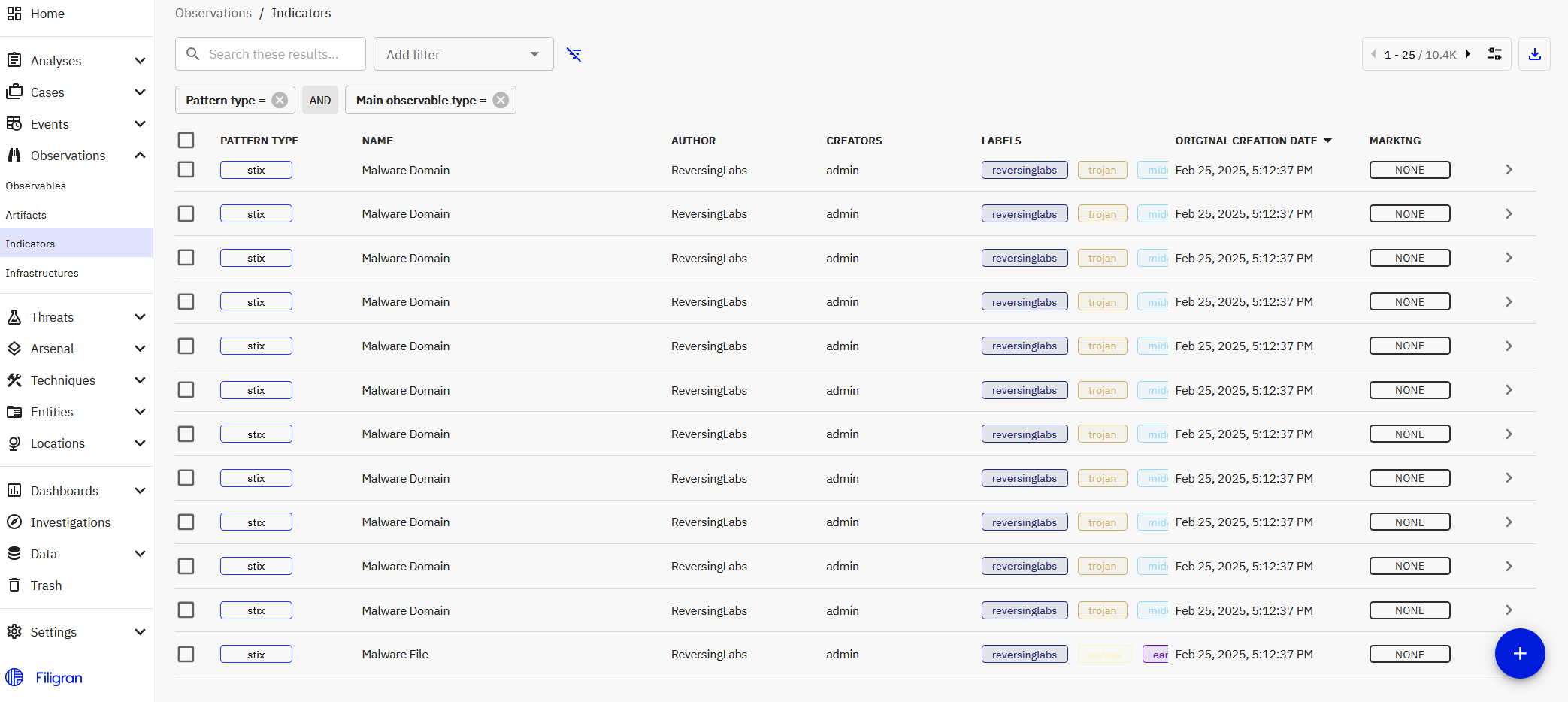
- From the menu bar, select Observations > Indicators
- Look for indicators with the author value "ReversingLabs" and a creator value that matches the user specified during configuration.