MOVEit Transfer Integration: ICAP Connector Setup
This integration guide describes how to configure the ReversingLabs ICAP Server Connector on Spectra Detect or Spectra Analyze as the content scanning service for Progress MOVEit Transfer.
This guide was written and validated against Spectra Detect 5.7.0 and Spectra Analyze 9.8.x.
Integration overview
Progress MOVEit Transfer doesn't ship its own malware engine. It delegates content scanning to an external service over ICAP, the Internet Content Adaptation Protocol defined in RFC 3507. Whatever sits on the far end of that call is the malware control for partner file exchange.
This guide places ReversingLabs Spectra Detect or Spectra Analyze on the far end of that call. ReversingLabs analyzes files submitted to the ICAP service within the configured scanning limits, and returns a verdict before the transfer completes. A file whose classification falls outside the Allow Classifications policy is rejected at upload; MOVEit Transfer reports a content-scanning failure to the uploader and the file isn't stored.
Both products expose the same ICAP Server Connector, and ReversingLabs documents the same core configuration fields on each. Spectra Detect is the deployment for production managed file transfer volume. Spectra Analyze fits smaller environments where analysts want a local investigation surface over transferred files. Differences are called out inline.
MOVEit Transfer content scanning applies to upload operations only. Downloads and AS2 transfers are outside its scope, so this integration uses ICAP request mode (REQMOD) exclusively. Source: Progress MOVEit Transfer Web Admin Help, System - Content Scanning.
Supported topologies
The ICAP Server Connector acts as an ICAP server and integrates in any ICAP deployment model, including managed file transfer. Two topologies cover the MOVEit Transfer cases.
Spectra Detect
MOVEit Transfer points at a virtual IP fronting a supported Spectra Detect Hub high-availability deployment. ReversingLabs documents Hub redundancy and horizontal Worker scaling, so Worker count scales with upload volume independently of the ICAP front end.
Document the exact Hub topology under that virtual IP. Load-balancing ICAP requests across independent Hubs isn't automatically equivalent to a supported Hub HA configuration, and redundancy carries primary and secondary semantics in some deployment models.
Point the REQMOD Block Page URL at a reachable, highly available endpoint rather than a single appliance address. This is a ReversingLabs connector availability recommendation. It doesn't mean that a blocked MOVEit Transfer upload sends the uploader to that page; see test case T-05 in Interoperability test procedure.
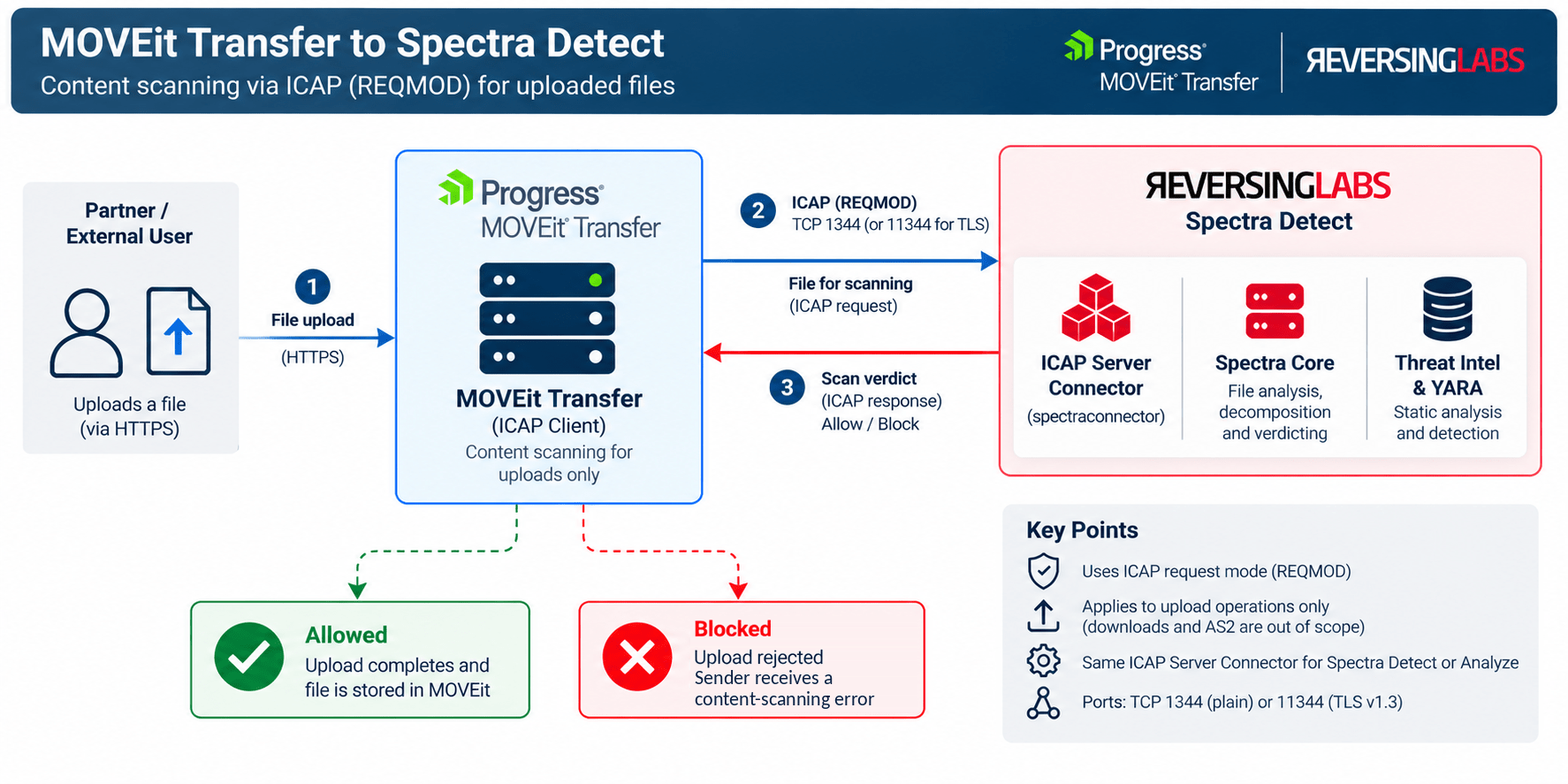
Figure 1. Spectra Detect topology. MOVEit Transfer nodes send REQMOD requests to a virtual IP in front of a Hub HA deployment. A blocked upload is rejected by MOVEit Transfer and the sender receives a content-scanning error; the ReversingLabs block page is not rendered to the sender.
Spectra Analyze
MOVEit Transfer points at a Spectra Analyze appliance. Files submitted through the ICAP Connector become local Spectra Analyze samples and are available from the Sample Details view. Depending on file type, classification, and configured analysis settings, the report can include Spectra Core static analysis, extracted files and metadata, YARA results, indicators, threat intelligence, and other investigation context.
Analysts get an investigation surface over partner traffic without a second ingestion path. Throughput is the constraint here, not analysis depth; size the appliance according to Performance and scaling. The ICAP Connector is available on Spectra Analyze from release 9.5 and supports both REQMOD and RESPMOD.
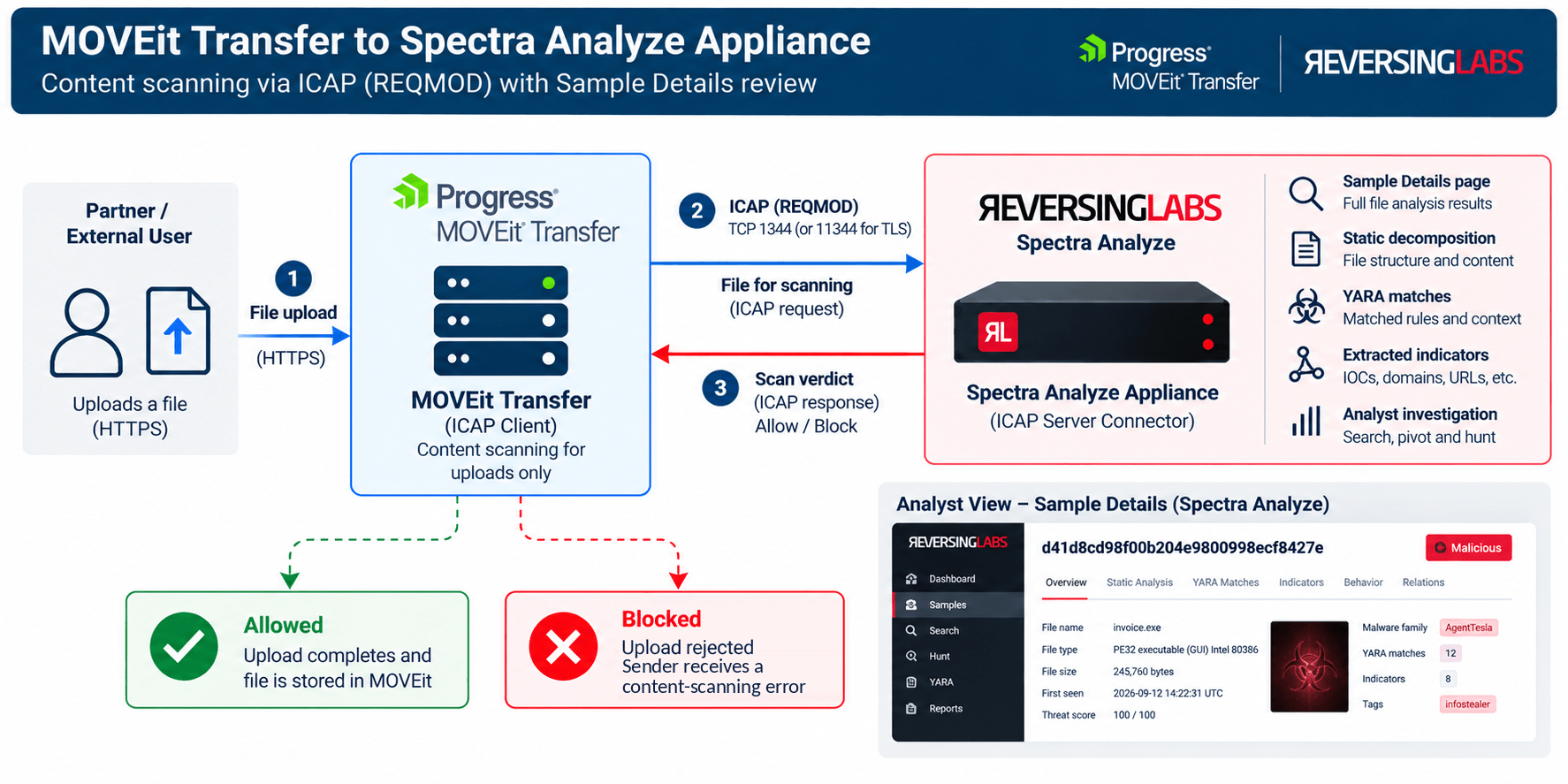
Figure 2. Spectra Analyze topology. Files scanned over ICAP become local samples available in Sample Details. A blocked upload is rejected by MOVEit Transfer and the sender receives a content-scanning error.
Prerequisites
ReversingLabs
- Spectra Detect: a licensed Hub that belongs to a Hub group with at least one Worker. The Connectors service is configured from the Appliance status page in Spectra Detect Manager.
- Spectra Analyze: a licensed appliance running 9.5 or later, with the Connectors service available under Administration.
- Network: TCP 1344 (plain ICAP) or TCP 11344 (ICAP over TLS v1.3) reachable from every MOVEit Transfer host to the appliance or virtual IP.
- Certificates: for ICAP over TLS, a server certificate on the appliance trusted by the MOVEit Transfer host. Self-signed certificates require the MOVEit Transfer Ignore certificate errors option.
- Administrative access: sufficient rights to enable and configure connectors on the appliance or through the Spectra Detect Manager API.
MOVEit Transfer
- MOVEit Transfer with content scanning available in the licensed edition.
- SysAdmin account on the MOVEit Transfer web interface.
- Egress from every MOVEit Transfer host in the cluster. Content scanning configuration applies system-wide across hosts, so a node without network reach to the appliance fails every upload it serves.
- EICAR test file for the built-in connectivity test.
- A test window for the interoperability test procedure, before production cutover.
Integration architecture
MOVEit Transfer acts as the ICAP client. The ReversingLabs appliance acts as the ICAP server and advertises a service named spectraconnector. The exchange runs inline with the upload, so verdict latency is upload latency.
The upload path runs as follows:
- A partner uploads a file through the MOVEit Transfer web interface, an SFTP client, or the MOVEit REST API.
- MOVEit Transfer opens a REQMOD request to
icap://<appliance>:1344/spectraconnectorand streams the file body, up to its configured Maximum file size to scan. - The ICAP Server Connector accepts the body and submits it for analysis, within its own Max File Size and Timeout limits. Spectra Core decomposes the file, unpacking archives, installers, and packed executables recursively.
- The connector compares the resulting classification against the Allow Classifications policy.
- The connector answers over ICAP. ReversingLabs returns
204for a permitted file when the client sends anAllow: 204header, and200 OKwith theX-Blockedheader set toTruefor a blocked file. - MOVEit Transfer acts on that response. A clean verdict completes the upload. A blocked verdict rejects the upload, and MOVEit Transfer reports a content-scanning failure to the uploader.
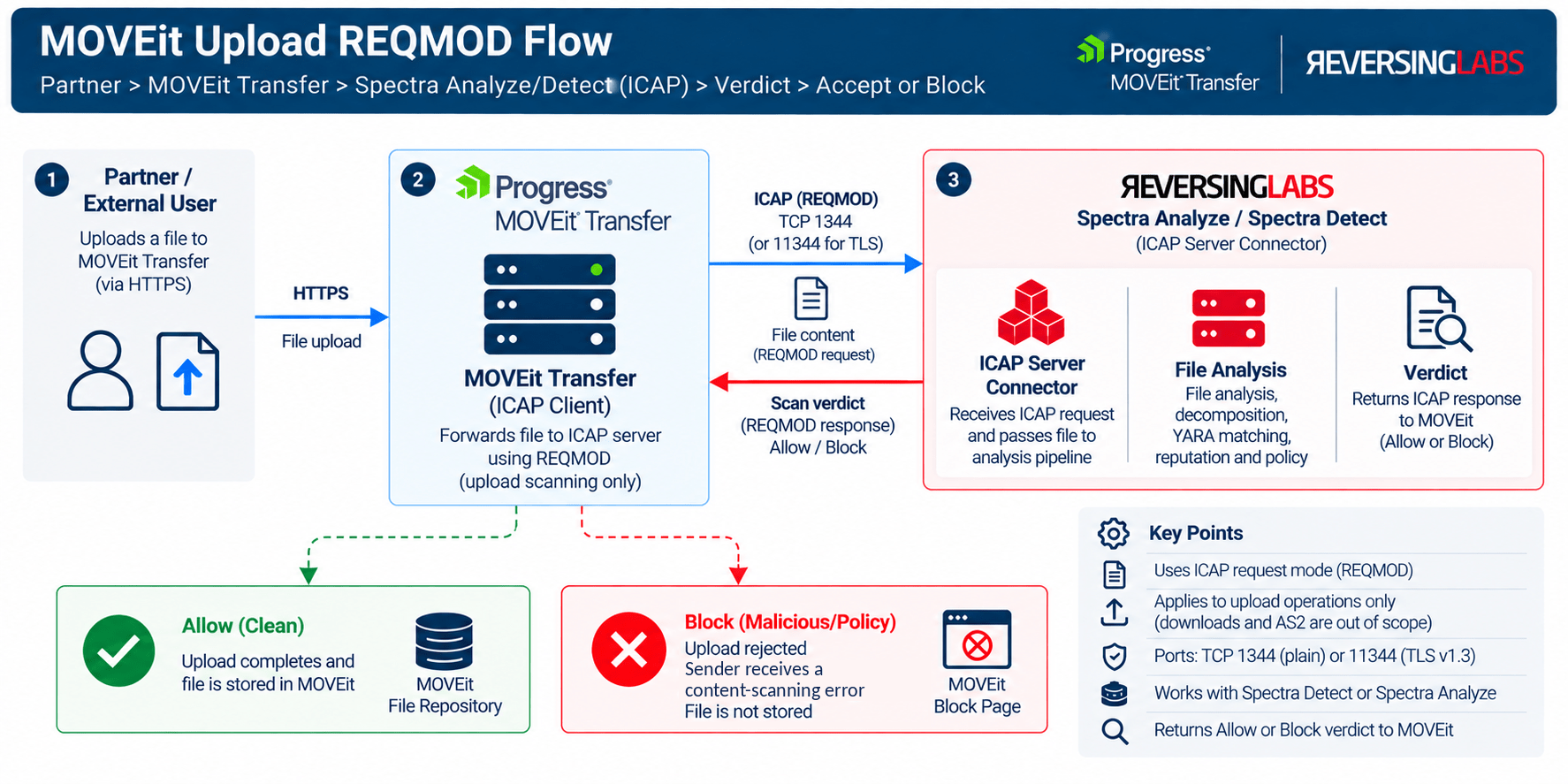
Figure 3. Upload sequence. On a blocked verdict (200 OK, X-Blocked: True) MOVEit Transfer rejects the upload and the sender receives a content-scanning error message from MOVEit Transfer. The REQMOD Block Page URL is advertised to the ICAP client but is not rendered to the sender.
RESPMOD is supported by the ICAP Server Connector but isn't used by this integration because MOVEit Transfer scans uploads only. The RESPMOD Block Page setting can be left at its default.
Configuration
Phase 1: Prepare the network
- Decide whether ICAP runs over TLS. Plain ICAP listens on TCP 1344; ICAP over TLS v1.3 listens on TCP 11344.
- Open the chosen port from every MOVEit Transfer host to the appliance address or the load-balancer virtual IP.
- Verify reachability from a MOVEit Transfer host before configuring either console. A blocked port surfaces later as an ambiguous upload failure.
Phase 2: Enable the ICAP Server Connector
On Spectra Detect:
- Open Spectra Detect Manager and go to the Appliance status page.
- Click the connected Hub, then click Connectors.
- Select the ICAP Server connector. If it has never been configured, the dialog shows only Enable connector. Click it.
- Complete the fields described in ICAP Server Connector parameters.
- Click Start connector. The button changes to Pause connector, which confirms the service is running.
On Spectra Analyze:
- Go to Administration > Connectors and select the ICAP Connector.
- Click Enable connector, complete the fields described in ICAP Server Connector parameters, then click Start connector.
Configuration changes can be saved with Save changes while the connector is running. You don't need to pause the connector to edit a field.
Phase 3: Configure MOVEit Transfer content scanning
- Sign in to the MOVEit Transfer web interface as a SysAdmin.
- Go to Settings > System > Content Scanning > Anti-virus/DLP.
- Set Scan uploads to Yes.
- Enter the ICAP server details described in MOVEit Transfer content scanning parameters. Keep the
icap://prefix in both cases:icap://appliance.example.com:1344/spectraconnectorwithout TLS, andicap://appliance.example.com:11344/spectraconnectorwith the Use secure ICAP setting. - Set the maximum file size to scan deliberately. At the 15 MB default, only the first 15 MB of a larger file is scanned.
- Click Change Content Scanning to apply.
icaps:// is available as well.
Phase 4: Verify the integration
- Click Test Content Scanning. MOVEit Transfer pushes an EICAR test file to the ICAP service and reports the result.
- Confirm the test reports a detection. A pass with no detection means the request reached a service that isn't scanning; recheck the service path in the Server URL.
- Upload a benign file through a real MOVEit Transfer account and confirm it completes.
- Upload the EICAR file through the same account and confirm the upload is rejected and MOVEit Transfer reports a content-scanning failure. Record the exact message the uploader sees.
- Run the full interoperability test procedure before production cutover.
Configuration parameters
ICAP Server Connector parameters
These parameters apply to the ICAP Server Connector on both Spectra Detect and Spectra Analyze.
| Field | Required | Type | Default | Description |
|---|---|---|---|---|
| Max File Size | Optional | int (MB) | 0 (unlimited) | Largest file the connector processes, in megabytes. 0 means no connector-level limit. Files above a non-zero value aren't analyzed. The platform ingest limit still applies; see Max File Size and the platform ingest limit. |
| Allow Classifications | Mandatory | enum (multi) | goodware, unknown (example) | Classifications permitted through: goodware, unknown, suspicious, malicious. Files outside the selection are blocked. |
| Service Alias | Optional | string | None | Additional ICAP service names. The base name spectraconnector is fixed and must not be re-entered here. |
| Timeout | Optional | int (seconds) | 300 | Processing budget per request. A file not processed within this window terminates the request. |
| REQMOD Block Page URL | Mandatory | string (URL) | None | URL the ICAP client fetches on a block. Default form: https://{RL_APPLIANCE_IP}/icap-block-page. Point it at a reachable, highly available endpoint. MOVEit Transfer doesn't render this page to the uploader; see T-05 in Test cases. |
| RESPMOD Block Page | Optional | file upload | None | Replacement content for a blocked HTTP response. Maximum 0.5 MB. Not used by MOVEit Transfer. |
| Use TLS | Optional | bool | Disabled | Enables TLS v1.3 for the ICAP listener. |
| ICAP server listen port | Mandatory | int | 1344 / 11344 | Listener port. 1344 without TLS, 11344 with TLS. |
| Scan raw data | Optional | bool | Disabled | Extracts the raw HTTP message body and submits it to the analysis engine unmodified. |
Max File Size and the platform ingest limit
The connector default of 0 removes the connector-level limit; it doesn't remove the appliance's own maximum supported file size. The maximum supported upload size on Spectra Analyze is 10 GB; see File size restrictions. On Spectra Detect, the effective limit depends on Worker and Large File Worker configuration and is deployment-specific.
Set a non-zero Max File Size only when you want the connector to refuse files above a size smaller than the platform limit. Whatever value you set, confirm in test case T-07 that it isn't lower than the MOVEit Transfer Maximum file size to scan; otherwise it becomes the effective limit.
For the full connector reference, see ICAP Server for Spectra Detect and ICAP Server for Spectra Analyze.
MOVEit Transfer content scanning parameters
These parameters are on the Anti-virus/DLP page in MOVEit Transfer.
| Field | Required | Type | Default | Set to |
|---|---|---|---|---|
| Scan uploads | Mandatory | bool | No | Yes |
| Name | Mandatory | string | None | A label for the service, for example, ReversingLabs Spectra Detect. |
| Use secure ICAP | Optional | bool | Off | On when the appliance has Use TLS enabled. |
| Server URL | Mandatory | string | None | icap://appliance.example.com:1344/spectraconnector. Keep the icap:// prefix with secure ICAP and change the port to 11344. |
| Server Type | Optional | enum | Determined automatically | No action in current MOVEit Transfer versions, which determine the ICAP server type automatically. If your build exposes a selector, confirm the label in the admin help for that version. |
| Server connection timeout | Optional | int (sec) | 5 | Leave at 5 unless the path crosses a WAN link. |
| Server send timeout | Optional | int (sec) | 30 | Raise for large uploads, then validate under load. See Performance and scaling and test case T-06. |
| Server receive timeout | Optional | int (sec) | 30 | Validate under load against the appliance Timeout value. See Performance and scaling and test case T-06. |
| Server connection tries | Optional | int | 3 | Leave at 3. Exhausting the attempts rejects the upload. |
| Do Preview | Optional | bool | Off | Optional. The connector answers 100 Continue to a preview request. |
| Server allows "204" responses | Optional | bool | Yes | Yes. The connector returns 204 on a clean verdict when this is set. |
| Chunk Size | Optional | int (KB) | 1 to 1024 range | Leave at the default unless tuning throughput. |
| Maximum file size to scan | Mandatory | int (MB) | 15 | Raise for complete-file scanning, or set 0 for no maximum. At the default, only the first 15 MB of a larger file is scanned. |
| Ignore certificate errors | Optional | bool | Off | On only for self-signed appliance certificates in non-production environments. |
Field names and defaults follow Progress MOVEit Transfer Web Admin Help. Confirm them against the MOVEit Transfer version in your environment.
ICAP response codes
| Code | Meaning on the ReversingLabs side |
|---|---|
100 Continue | Signals the client to send the remaining body after an ICAP Preview message. |
200 OK | Request processed. Returned whether or not the file was blocked. A blocked file carries X-Blocked: True. |
204 No modification needed | Clean verdict, returned when the client sent an Allow: 204 header. |
400 Bad request | Failure during file submission, analysis processing, or delivery of results to the client. |
404 Not found | The ICAP service couldn't be found. Check the service path in the MOVEit Transfer Server URL. |
405 Method Not Allowed | The requested method isn't supported on the endpoint. |
500 Internal Server Error | Generic server-side error. |
These are the ReversingLabs connector response semantics. Confirm how the MOVEit Transfer ICAP client maps each of them to an accept or reject decision in test cases T-03 and T-04 of the interoperability test procedure.
Traffic flow validation
- Run Test Content Scanning in MOVEit Transfer and confirm the EICAR file is detected.
- Check the connector state on the appliance. A running connector shows Pause connector rather than Start connector.
- Upload a clean file and confirm the transfer completes with no delay beyond expected analysis time.
- Upload a file whose classification falls outside the Allow Classifications policy and confirm MOVEit Transfer rejects the upload.
- Open the REQMOD Block Page URL directly in a browser and confirm the ReversingLabs block page is reachable. MOVEit Transfer doesn't render that page to the uploader; record what the uploader actually sees.
- On Spectra Analyze, open the uploaded file in Sample Details and confirm the submission and source metadata recorded for the connector.
Troubleshooting
| Symptom | Resolution |
|---|---|
| Test Content Scanning fails to connect | Verify the listener port matches the TLS setting: 1344 without TLS, 11344 with TLS. Confirm the port is open from the MOVEit Transfer host. |
ICAP 404 returned on every request | The service path is wrong. The base service name is spectraconnector and can't be changed. Any other name must be added under Service Alias first. |
| Malware inside a large file is permitted | At the 15 MB default, MOVEit Transfer scans only the first 15 MB of a larger file, and a clean partial scan permits the upload. Raise Maximum file size to scan, or set 0, and confirm the appliance Max File Size isn't lower. |
| Uploads fail under load | Compare the MOVEit Transfer Server receive timeout (default 30 seconds) with the appliance Timeout (default 300 seconds). The Progress definition of the receive timeout isn't a plain scan-response budget, so establish the working relationship by load testing (test case T-06) rather than by calculation. |
| Every upload fails while the appliance is down | Expected behavior. MOVEit Transfer anti-virus content scanning rejects an upload it can't check, after the configured connection attempts. |
| TLS handshake failure | The appliance certificate isn't trusted by the MOVEit Transfer host. Install the issuing CA, or enable Ignore certificate errors in non-production environments only. |
| Clean files are blocked | Allow Classifications is too narrow. Files that don't match the selected classifications are blocked, and unknown is a common omission. |
| The ReversingLabs block page is unreachable | The REQMOD Block Page URL points at a node that is down or out of rotation. Use a highly available endpoint. This affects ICAP clients that fetch the page; it doesn't change what the MOVEit Transfer uploader sees. |
Advanced options
- Classification policy: Allow Classifications is the enforcement point. Permitting
goodwareandunknownwhile blockingsuspiciousandmaliciousis the common production posture for partner uploads. Permitting onlygoodwareis the strict posture and rejects a share of legitimate business files. - Scanner unavailability: For MOVEit Transfer anti-virus content scanning, an unavailable scanner causes the upload to be rejected after the configured connection attempts. That is effectively fail-closed. If business requirements call for fail-open behavior, confirm whether it can be implemented safely in the specific MOVEit Transfer deployment or the surrounding infrastructure. Don't assume it's an anti-virus scanner configuration option. The configurable Action on Server Error applies to the DLP workflow, which is separate.
- Service aliases: Multiple aliases let separate ICAP clients address the same connector under their own service names, which keeps MOVEit Transfer traffic distinguishable from a web gateway sharing the appliance.
- Scan raw data: Enable when the raw HTTP message body must reach the analysis engine unmodified.
- API-driven configuration: Spectra Detect Manager exposes the connector over REST.
POST /api/v1/appliances/{id}/connectors/icap/enables it, andPOST /api/v1/appliances/{id}/connectors/icap/v1/config/writes the configuration. Both apply to appliances of type Hub only. Use these to keep several Hubs identical. - Per-organization scoping: MOVEit Transfer content scanning configuration is system-wide, and individual organizations can be exempted through Security Policies. Confirm the setting for every organization after a system-wide change.
Performance and scaling
Validate the two timeout budgets under load
The defaults on the two sides don't match. The appliance Timeout defaults to 300 seconds. The MOVEit Transfer Server receive timeout defaults to 30 seconds. On the face of it the client gives up first, which would surface a long analysis as a MOVEit Transfer failure while the appliance is still working.
Treat that as a hypothesis to test, not a calculation. Progress describes the receive timeout as how long the scanner can fail to receive data from MOVEit Transfer, which isn't a plain end-to-end scan-response budget. Measure the real relationship with large files at production concurrency (test case T-06), then set both values from what you observe.
Set the two size limits deliberately
MOVEit Transfer doesn't skip files above its Maximum file size to scan. It scans up to the configured amount of every file, and a clean partial scan permits the file. At the 15 MB default, only the first 15 MB of a larger upload is inspected.
Raise the value to cover the largest file the transfer profile carries, or set 0 for no maximum. The connector Max File Size defaults to 0 (unlimited), so with both sides at 0 the effective limit is the platform ingest limit. If you set a non-zero connector value, confirm it isn't the lower of the two; otherwise it becomes the effective limit.
Throughput
- Spectra Detect scales incrementally from 100,000 to 100 million files per day by adding Worker nodes. Worker count, not the ICAP front end, is the scaling lever for managed file transfer volume.
- Large file handling is deployment-specific. In OVA/AMI deployments, provision dedicated Large File Workers as required and set the threshold in Spectra Detect Manager. Kubernetes and microservices deployments may automatically scale processing components based on the deployment configuration.
- Spectra Analyze sizing: ReversingLabs publishes indicative figures for the recommended configuration of 12 CPU cores, 64 GB RAM, and 2 TB SSD: seven or more samples per minute, hosted instances up to 10,000 files per day, and a recommended 7-day file retention because performance falls with longer retention. Treat these as indicative sizing guidance rather than a performance guarantee, and confirm them against current documentation and your own file mix.
ICAP scanning is inline. Every second of analysis adds upload latency for the partner. Size the deployment against peak concurrent uploads, not daily totals.
Interoperability test procedure
This is the pre-cutover acceptance test referenced throughout this guide. It exists because the ReversingLabs and Progress documentation each describe their own side of the ICAP exchange, and neither documents the combined behavior. Every test below targets a behavior this guide deliberately doesn't assert.
Run the full set in a non-production MOVEit Transfer organization against the production appliance build, record the observed result for each case, and attach the completed record to the change request for cutover.
Test environment
- MOVEit Transfer: a non-production organization on the same MOVEit Transfer version and cluster topology as production, with content scanning configured as described in MOVEit Transfer content scanning parameters. If only a production cluster exists, use a dedicated test organization and a maintenance window, because content scanning configuration is system-wide.
- Appliance: the Spectra Detect Hub HA deployment or Spectra Analyze appliance intended for production, configured as described in ICAP Server Connector parameters, with Allow Classifications set to the intended production policy.
- Test accounts: one MOVEit Transfer end-user account with upload rights to a test folder, used through the web interface, an SFTP client, and the REST API so that all three upload paths are covered.
- Observability: MOVEit Transfer logs (anti-virus error codes 6100 to 6103), the connector log on the appliance, and a packet capture or ICAP trace on the MOVEit Transfer host for T-03 and T-04. On Spectra Analyze, the Sample Details view for each submitted file.
Test files
| ID | File | Expected classification | Purpose |
|---|---|---|---|
| F1 | A plain text or PDF business document | goodware or unknown | Baseline clean path. |
| F2 | EICAR test file, uncompressed | malicious | Baseline block path; also used by MOVEit Transfer Test Content Scanning. |
| F3 | EICAR inside a ZIP, then inside a second ZIP | malicious | Recursive decomposition through the connector. |
| F4 | A clean file at least twice the size of the MOVEit Transfer Maximum file size to scan | goodware or unknown | Partial-scan behavior and size-limit interplay. |
| F5 | F4 with EICAR appended after the first N MB, where N is the MOVEit Transfer Maximum file size to scan | malicious | Demonstrates that a partial scan can permit malware when the limit is too low. |
| F6 | A clean file of the largest size the production transfer profile carries | goodware or unknown | Timeout and throughput under realistic size. |
| F7 | A file known to classify as suspicious in your environment, if available | suspicious | Confirms policy enforcement on the suspicious class when it's excluded from Allow Classifications. |
Build F5 only in the test environment and delete it after T-07. It's a deliberate detection-evasion specimen.
Test cases
For each case, record the observed result, the MOVEit Transfer log entry, the connector log entry, and the exact uploader-facing message. A case passes only when the observed result matches the acceptance criterion. Where the criterion says "record", the purpose is to establish the behavior for the runbook, and the case passes when the behavior is recorded and accepted by the integration owner.
| ID | Test | Procedure | Acceptance criterion |
|---|---|---|---|
| T-01 | Built-in connectivity test | In MOVEit Transfer, click Test Content Scanning. | MOVEit Transfer reports a detection. A pass with no detection fails this case; recheck the service path. |
| T-02 | Clean upload, all paths | Upload F1 through the web interface, SFTP, and REST. | All three uploads complete. The connector log shows a 204 response (or 200 without X-Blocked, if 204 is disabled). On Spectra Analyze, the sample appears in Sample Details with connector source metadata. |
| T-03 | Block on 200 with X-Blocked | Upload F2 through the web interface, SFTP, and REST with Server allows "204" responses set to Yes. Capture the ICAP exchange. | The connector returns 200 OK with X-Blocked: True. MOVEit Transfer rejects the upload on all three paths and the file isn't present in the folder. Record the exact uploader message per path. |
| T-04 | Block with 204 disabled | Set Server allows "204" responses to No. Repeat T-02 and T-03. | Clean uploads still complete on a 200 without X-Blocked. Blocked uploads are still rejected. Restore the setting to Yes afterward. This confirms MOVEit Transfer keys on X-Blocked, not on the status code alone. |
| T-05 | Uploader-facing outcome | During T-03, observe the web interface as the uploader. Separately, browse the REQMOD Block Page URL from the MOVEit Transfer host and from a workstation. | The block page URL is reachable from both. Record whether the web uploader sees a MOVEit Transfer content-scanning error, a redirect to the block page, or both. The documented and expected result is a MOVEit Transfer error message; a redirect to the ReversingLabs block page isn't expected. Use the recorded message in partner-facing communication. |
| T-06 | Timeout interplay | Upload F6 at production-representative concurrency (at least 5 parallel uploads). Observe analysis time on the appliance and the outcome in MOVEit Transfer. Repeat with Server receive timeout and Server send timeout raised in steps. | Establish the lowest MOVEit Transfer timeout values at which no clean upload fails while the appliance is still processing, and confirm they're below the appliance Timeout. Record the final values; they become the production MOVEit Transfer settings. |
| T-07 | Size-limit interplay | With the MOVEit Transfer Maximum file size to scan at 15 MB, upload F4 and F5. Then set it to 0, or to a value that covers F5, and repeat. Then set a connector Max File Size lower than F5 and repeat once more. | At 15 MB, F4 completes and F5 is permitted. This is the documented partial-scan behavior and the reason to raise the limit. With the limit raised, F5 is blocked. With the connector limit lower than F5, record the outcome: the file isn't analyzed, and MOVEit Transfer either accepts or rejects it. That outcome drives the production Max File Size decision. Restore both settings. |
| T-08 | Recursive decomposition | Upload F3. | Blocked. The connector log shows the nested EICAR classification. |
| T-09 | Policy enforcement on suspicious | Upload F7 with suspicious excluded from Allow Classifications, then with it included. | Blocked when excluded, permitted when included. Restore the production policy. |
| T-10 | Fail-closed on scanner outage | Pause the connector, or block TCP 1344/11344 from the MOVEit Transfer host. Upload F1. | The upload is rejected after the configured Server connection tries. MOVEit Transfer SysCheck emails the Send Errors To address. Resume the connector and confirm the next F1 upload completes and the recovery email arrives. |
| T-11 | HA failover (Spectra Detect) | With uploads of F1 running in a loop, take the active Hub behind the virtual IP out of service. | Record the number of failed uploads during failover and the time to recovery. Zero failures is the goal but depends on topology; the recorded figure is the published recovery time objective (RTO) for the integration. |
| T-12 | TLS path | If Use TLS is enabled, repeat T-01 to T-03 over port 11344 with Use secure ICAP on and Ignore certificate errors off. | Outcomes are identical to the plain ICAP path with a trusted certificate chain. A handshake failure with Ignore certificate errors off is a certificate trust defect, not an integration defect. |
| T-13 | Multi-node cluster coverage | On a MOVEit Transfer cluster, pin uploads to each node in turn, or repeat T-02 and T-03 enough times to land on every node. | Every node produces the same accept and reject outcomes. A node that fails every upload lacks network reach to the appliance. |
| T-14 | Organization scoping | Confirm the Security Policy content scanning setting for every MOVEit Transfer organization that goes live. | No organization is unintentionally exempt from scanning. |
Exit criteria
- T-01, T-02, T-03, T-08, T-10, T-13, and T-14 pass without deviation.
- T-04, T-05, T-06, T-07, and T-11 have recorded results accepted by the integration owner, and the recorded values are applied to the connector and MOVEit Transfer configuration and written into the operations runbook.
- T-09 and T-12 pass where the corresponding feature is in scope for the deployment.
- The business owner of the partner relationship has reviewed the uploader-facing message recorded in T-05, and it's used in partner communication.
Keep the completed test record with the cutover change request. When Spectra Detect, Spectra Analyze, or MOVEit Transfer is upgraded, rerun at least T-01, T-03, T-05, T-06, and T-10, because these cases depend on undocumented combined behavior.
Related integrations
The ICAP Server Connector serves any ICAP client, so one appliance can cover several ingestion points at once:
- Kiteworks
- Web gateways, forward and reverse proxies, and web application firewalls
- Load balancers and application delivery controllers, for example F5 BIG-IP LTM
- Network-attached storage and enterprise file shares
Where a partner workflow also drops files on storage, the SFTP, S3, Azure Data Lake, and network share connectors cover those paths without a second appliance.