User Guide — ReversingLabs Browser Extension
Best practices
Before using the ReversingLabs browser extension, read through the following recommendations to ensure effective and secure use of the browser extension.
API usage
Each lookup performed by the browser extension generates an API request to Spectra Analyze or Spectra Intelligence. Be aware that these requests count against your organization's API quota.
If you have any questions about your quota, contact support@reversinglabs.com.
Download scanning
The browser extension's download scanning feature has a default file size limit of 200 MB. Files larger than this cannot be automatically scanned, and if you submit such files, the scan fails. However, files of any sizes can be downloaded if the ReversingLabs browser extension doesn't attempt to scan them.
If you frequently work with large files, it is recommended you allow downloading files without scanning by doing the following:
- Individual users:
- Disable automatic download scanning to avoid delays.
- Alternatively, enable the Prompt for confirmation option to decide whether to scan files on a case-by-case basis.
- Enterprise users: contact your IT administrator to allow you the choice to download files without scanning.
Using the extension
The ReversingLabs browser extension offers several modes of interaction. For more information, see below.
Indicator highlighting
The extension identifies indicators on a page, and highlights them by underlining the text and applying a clickable RL icon.
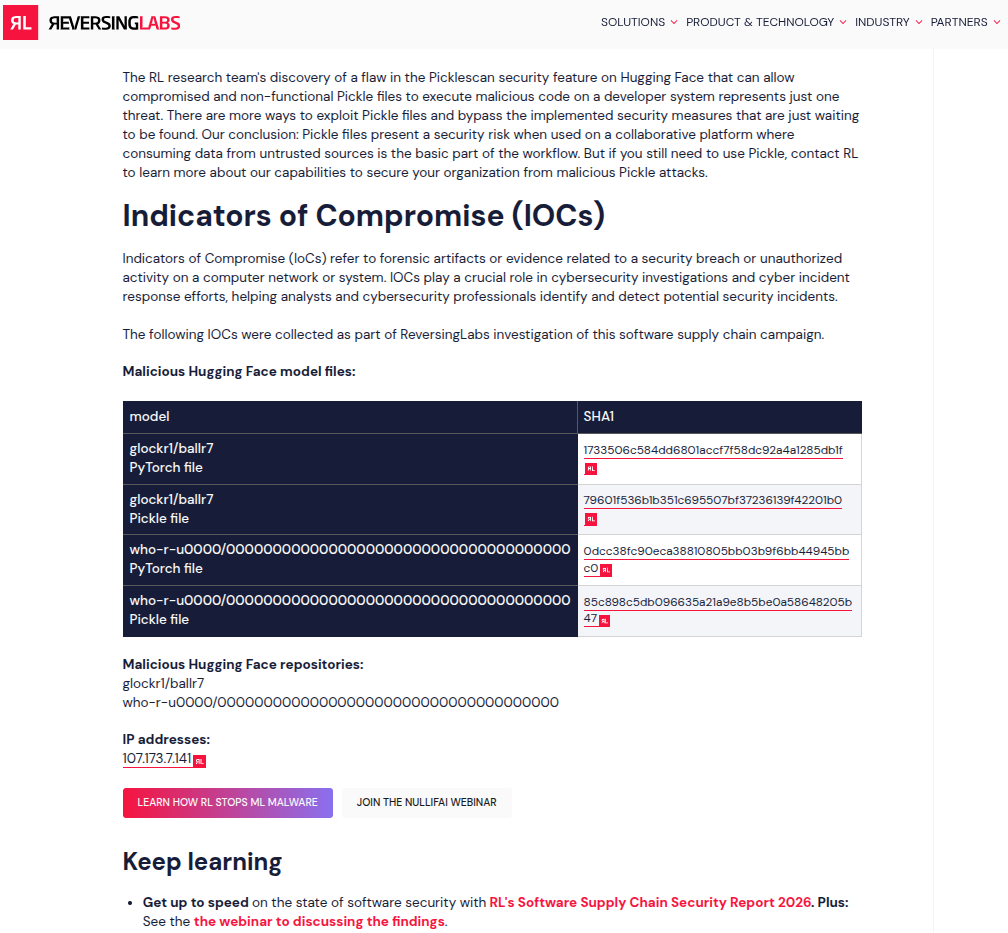
To learn more about the indicator, click the RL icon to see lookup results in the browser side panel.
Side panel
After clicking the RL icon next to an indicator, a side panel opens displaying the lookup results.
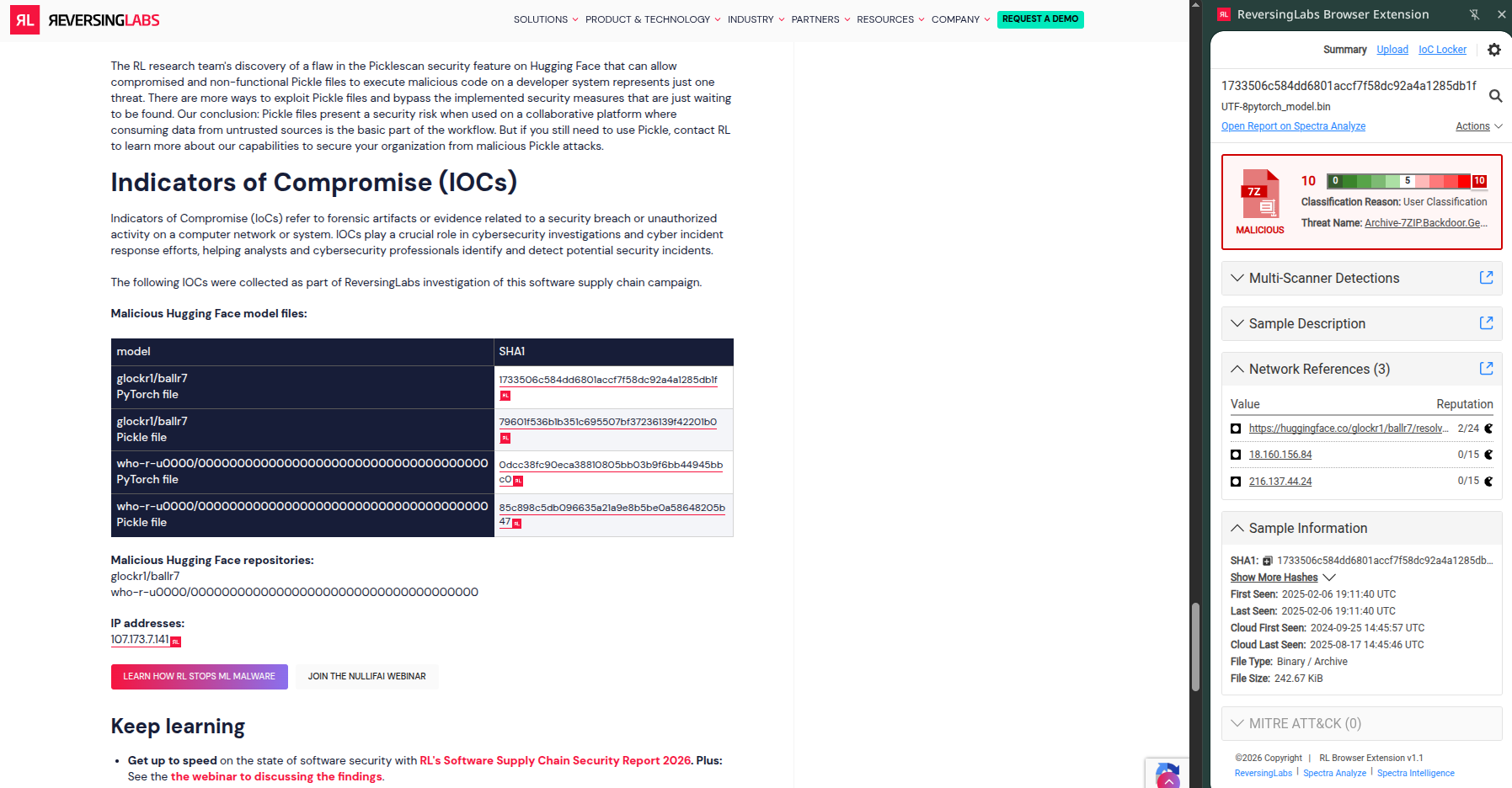
Hash example
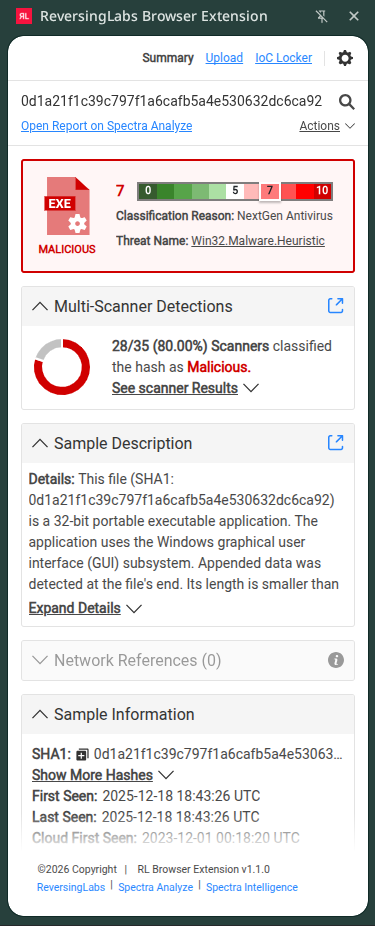
Domain example
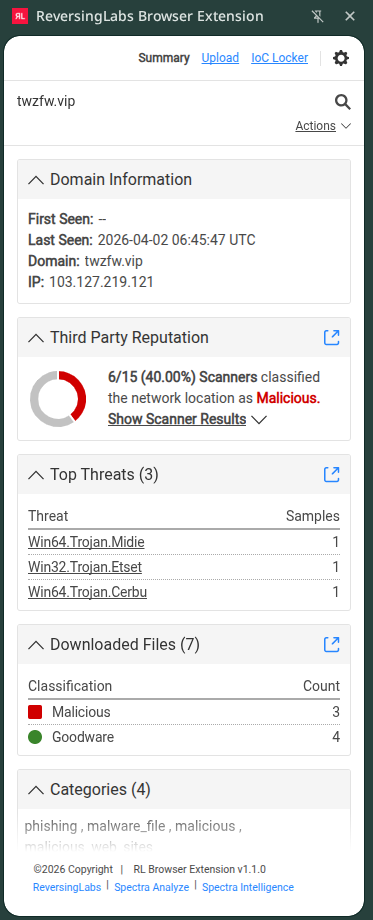
IPv4 address example
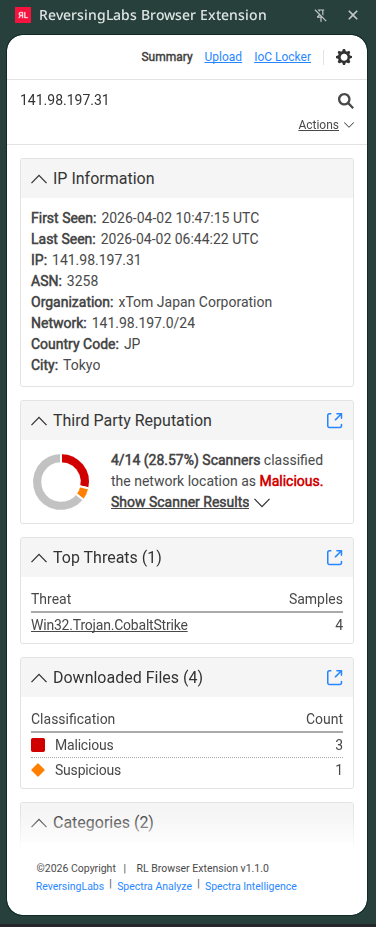
URL example
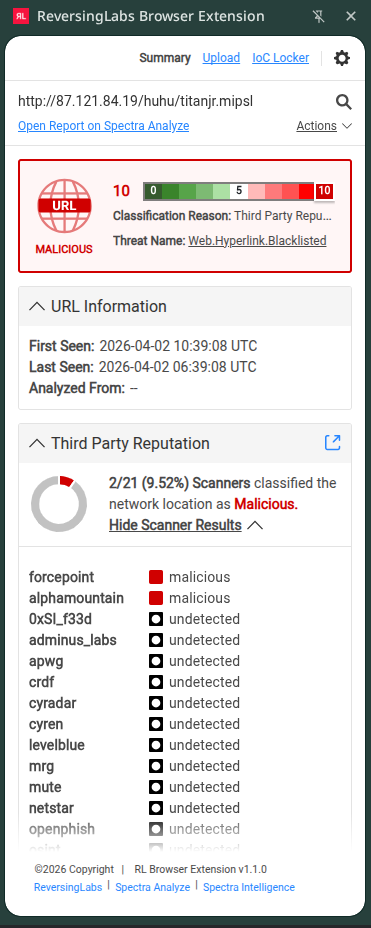
IoC Locker
The IoC (Indicator of Compromise) Locker enables investigators to collect, organize, and operationalize indicators discovered during investigations. It provides a workspace to capture and prepare IoCs for downstream security workflows.
The IoC Locker lets you:
- Capture indicators without leaving the investigation workflow.
- Reduce context switching between tools.
- Convert findings into detection and prevention rules quickly.
- Export in standardized formats (CSV, JSON) for import into EDR, XDR, and SIEM.
- Streamline handoff between SOC and detection teams.
Saving IoCs to the IoC Locker
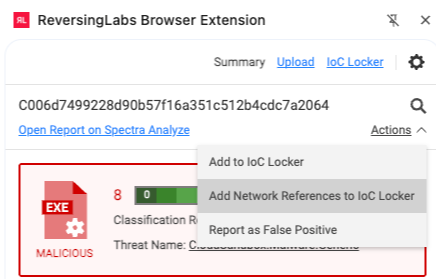
When reviewing a highlighted IoC in the side panel, from the Action pull-down menu select Add to IoC Locker.
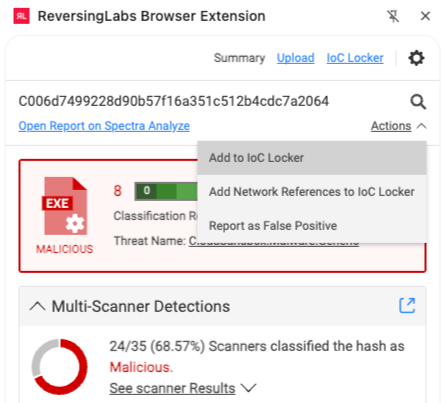
If the IoC also contains Network References, these can be saved by using the Action pull-down menu and selecting Add Network References to IoC Locker.
Reviewing IoC Locker contents
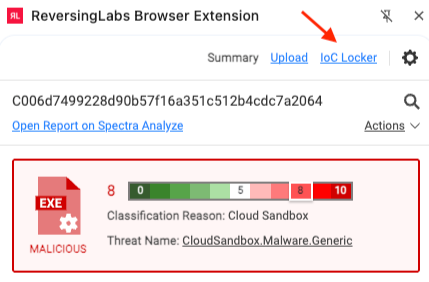
To review the saved IoCs, select the IoC Locker link in the top right corner of the side panel:
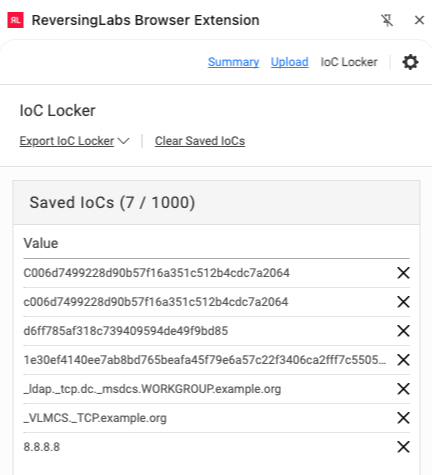
To remove IoCs, click the large X next to the item to be removed. To remove all IoCs from the IoC Locker, select Clear Saved IoCs.
Exporting for operationalization
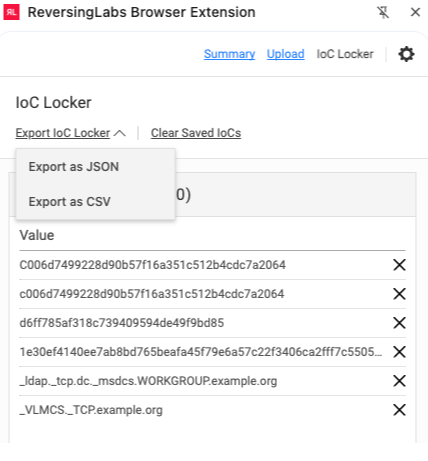
To export the IoC Locker for use in detection and prevention rules for your EDR, XDR or SIEM, select Export IoC Locker on the top menu bar, then select the format desired (CSV, JSON).
Pivot to Spectra Analyze
Pivot to Spectra Analyze enables investigators to instantly transition from extension-based triage into deep analysis within Spectra Analyze. With a single click, users can expand context, validate findings, and explore related intelligence.
With a single click, you can:
- Pivot to Spectra Analyze with pre-populated searches.
- Drill into metadata for expanded context (Threat Name, Detection Results, Sample Details, Network References, MITRE ATT&CK).
- Expand scope by pivoting to related samples, YARA rules, and threat intelligence.
Spectra Analyze pivot entry points
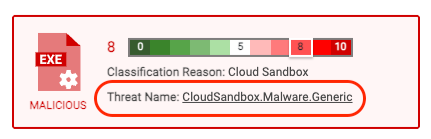
Threat name (classification card)
- Launch search in Analyze for Threat Name
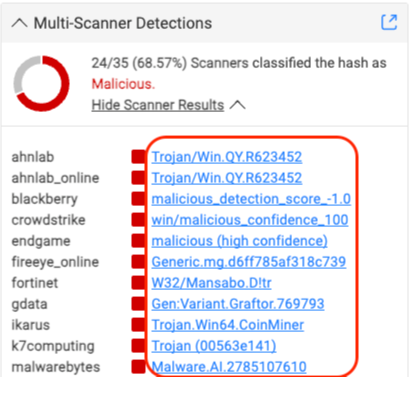
Threat name (multi-scanner detections)
- Launch search in Analyze for Engine:Threat Name combination
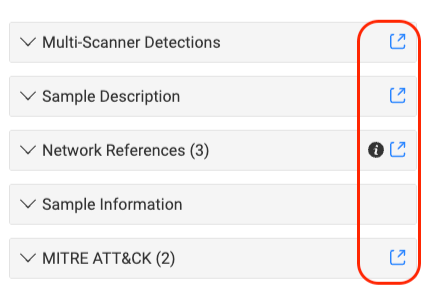
Information widgets (blue arrow)
- Pivot to specific metadata in Analyze:
- Multi-scanner detections
- Sample description
- Network references
- MITRE ATT&CK
Together, IoC Locker and Pivot to Spectra Analyze support the following investigation workflow:
- Discover: identify and validate threats during investigation using the browser extension.
- Expand: pivot into Spectra Analyze for deeper context.
- Capture: save IoCs and Network References as key investigation artifacts.
- Operationalize: export and deploy to security infrastructure for prevention and detection.
Context menu
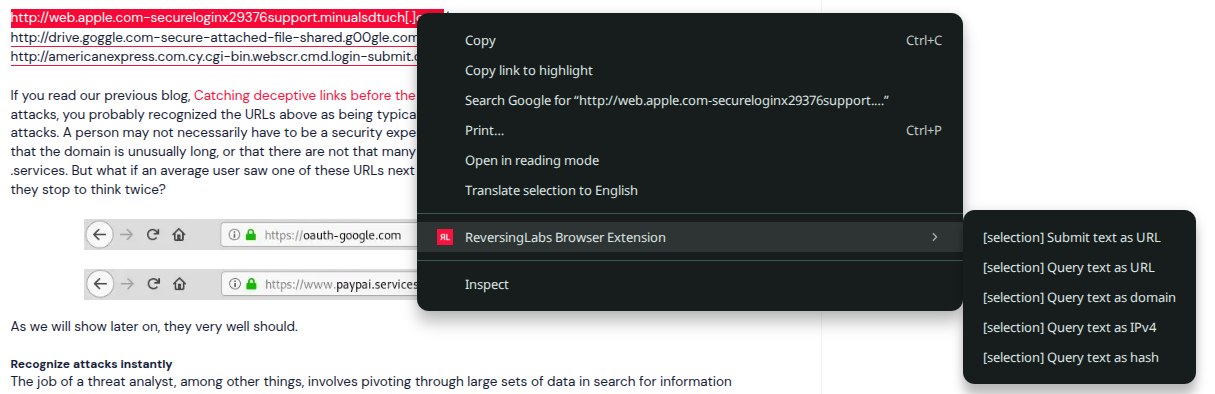
In addition to automatic highlighting, you can use the right-click context menu to manually select indicators for lookup when available.
- Find a highlighted item on the page and do either of the following:
- Right-click the RL icon.
- Select the underlined text in case of a hash, IP, URL or domain, and then right-click it.
- Hover over the ReversingLabs Browser Extension item.
- Click the appropriate action. The following actions may be available depending on what item you right-click and which permissions you have:
-
Open side panel: open the side panel. The side panel opens empty, or showing the last item you queried.
-
Do not highlight on this host: prevent content highlighting from this particular host. Use this option only for internal and trusted sites where you don't require continuous threat intelligence highlighting.
-
Add to Allow List: disable all scanning and analysis for a specific website. Use this option only for internal and trusted sites that you want to visit, and from which you want to download content without disruptions.
Enterprise usersAdd to Allow List may not be available to enterprise users depending on their enterprise settings.
-
Add to Block List: completely block downloads and page visits from a specific website. Use this option for high-risk and untrusted sites.
-
Query link target URL: look up this URL hyperlink.
-
Submit link target URL: submit this URL hyperlink for analysis.
-
Safely download link target: scan for analysis and then download targeted link.
-
- The following actions are available on text selection:
- Submit text as URL: submit the selected text for URL analysis.
- Query text as URL: look up the selected text as a URL.
- Query text as domain: look up the selected text as a domain.
- Query text as IPv4: look up the selected text as IPv4.
- Query text as hash: look up the selected text as a hash.
File upload
For Spectra Analyze users, the extension supports file upload for analysis.
By default, you can upload files of up to 200 MB in size. If you frequently need to upload larger files, use Spectra Analyze instead.
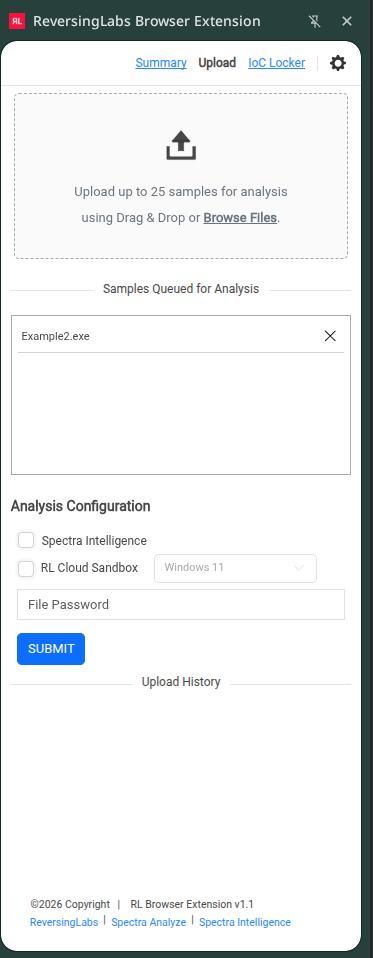
To upload a file to the Spectra Analyze appliance using the ReversingLabs browser extension, do the following:
- To open the extension side panel, right-click on a page and then select Open side panel from the context menu.
- Click the Upload tab near the top of the side panel.
- Drag and drop a file into the window, or click to open the file explorer and select a file. If you want to perform a batch sample analysis, you can upload a maximum of 25 files.
- Click the Upload button. Your file is listed under Samples Queued for Analysis.
- Analysis Configuration offers further analysis options:
- Spectra Intelligence: check this box to forward the samples to Spectra Intelligence for analysis. This option can be used at the same time as RL Cloud Sandbox.
- RL Cloud Sandbox: check this box to forward the samples to RL Cloud Sandbox for dynamic analysis. This option can be used at the same time as Spectra Intelligence.
- OS: from the drop-down list, select the appropriate operating system to use with RL Cloud Sandbox.
- File Password: if uploading a password-protected file, enter its password here.
- Click Submit to start the analysis.
- Under Upload History, find all successful and failed file analyses.
Once a file is submitted and analyzed, its color changes based on its classification. Clicking an analyzed file opens it in your Spectra Analyze appliance.
For more information about file classification and color-coding, see Spectra Analyze > Navigating the Interface > Color-Coding and Sample Status.
Automatic scan downloads
The extension can automatically scan downloaded files to detect malicious content.
By default, you can scan files of up to 200 MB in size. If you frequently need to scan larger files, use Spectra Analyze instead.
To enable the feature, do the following:
- Open the extension configuration page by clicking the RL Browser Extension icon in the browser toolbar.
- In the Additional Configuration section, make sure that Scan Downloads with Spectra Analyze or Spectra Intelligence is switched on.
If you are using the extension in enterprise mode, you may not have the necessary permissions to change this setting. For more information, contact your IT administrator.
- Optionally, Prompt when Downloading Files should be switched on if you want the extension to ask for confirmation before scanning files.
When scanning is enabled, downloaded files are submitted for analysis, and users are notified if threats are detected.
- if a file is flagged as malicious, the user is prompted for action.
- if a file is classified as goodware, the download proceeds uninterrupted.
All downloaded files are saved to the default Chrome/Edge downloads folder
Scan URLs
For both Spectra Analyze and Spectra Intelligence users, the extension includes a Scan URLs feature designed to prevent access to potentially malicious sites.
To enable and use this feature:
- Open the extension configuration page by clicking the RL Browser Extension icon in the browser toolbar.
- In the Additional Configuration section, make sure that Scan URLs is switched on.
If you are using the extension in enterprise mode, you may not have the necessary permissions to change this setting. For more information, contact your IT administrator.
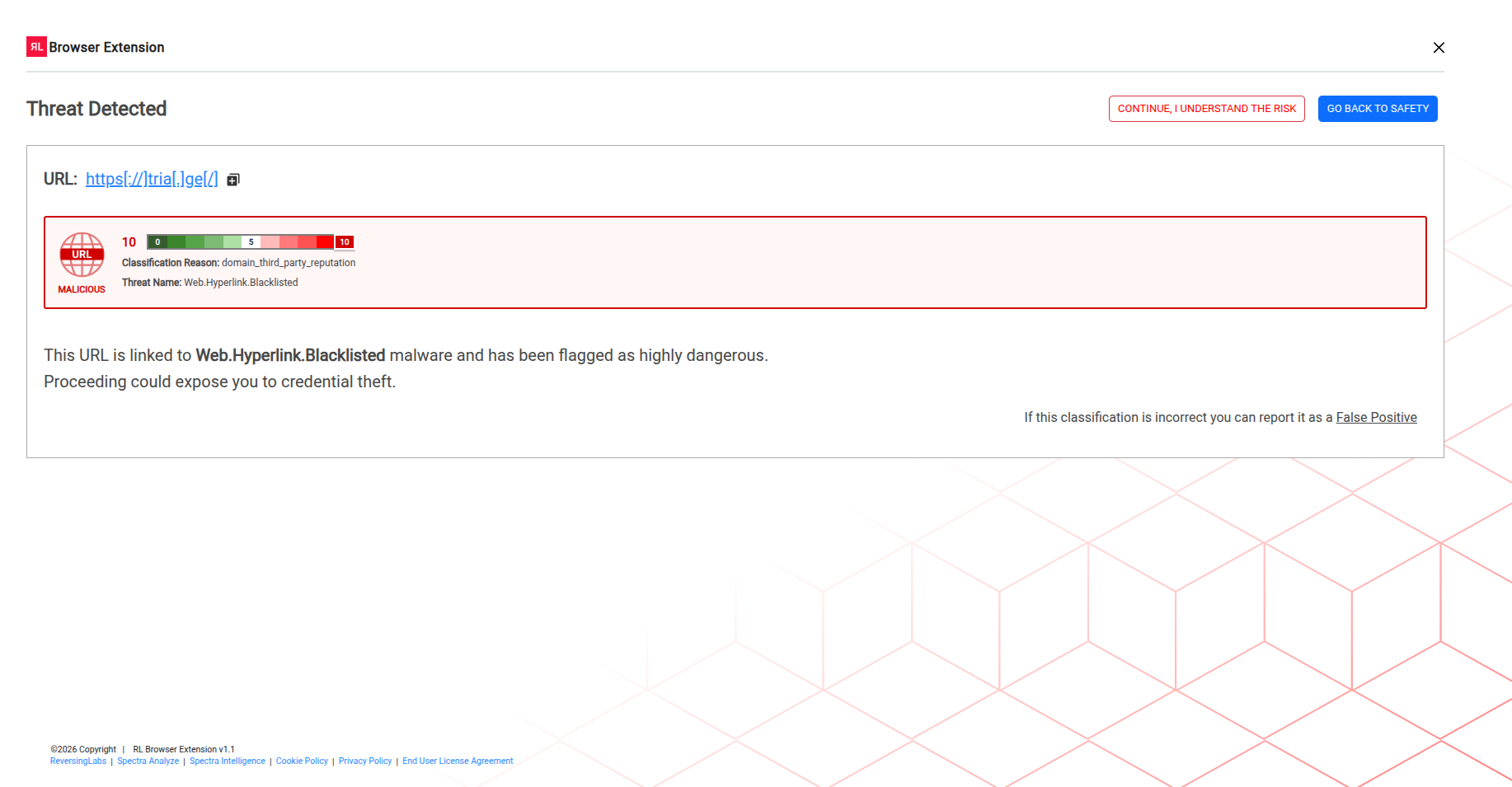
Once enabled, URLs you click or open in a new tab are checked for reputation. If a URL is identified as suspicious or malicious, you are redirected to a warning page where you can choose your next action.